
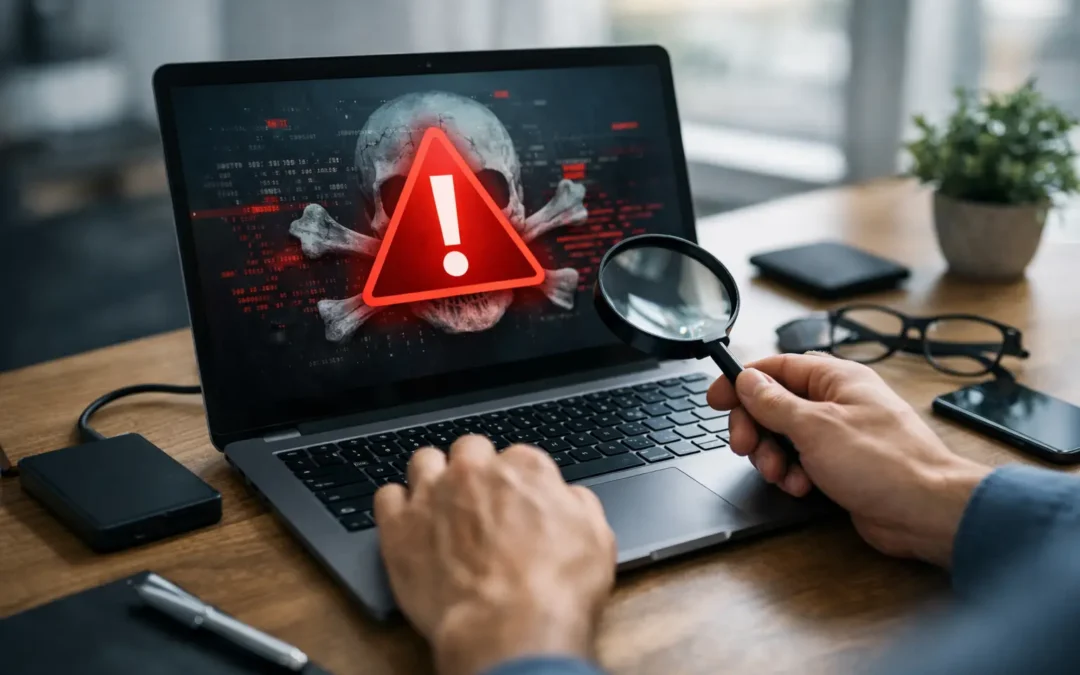
A laptop that starts opening strange ads, freezing during simple tasks, or demanding payment to access files is not a problem to ignore until the weekend. Laptop malware recovery is about stopping the infection early, protecting your personal information, and getting your computer dependable again without losing the files you need for work, school, or home.
The right next step depends on what the malware is doing. A few pop-ups may be removable with a trusted security scan. A ransomware message, unauthorized bank activity, or a laptop that will not boot calls for faster action and, often, professional help.
Disconnect the Laptop Before the Problem Spreads
If you think your laptop is infected, disconnect it from Wi-Fi and unplug any Ethernet cable right away. This can keep malware from sending data to someone else, downloading more harmful files, or moving across a shared home or business network.
Do not plug in a flash drive or external hard drive just to copy files yet. Some infections can spread to connected storage, and ransomware can encrypt files on drives attached after the attack begins. If you have cloud storage, pause syncing until you know the laptop is clean. Otherwise, corrupted or encrypted files may replace healthy versions in your account.
If the laptop is still usable, take a photo of any warning message with your phone. Exact wording can help identify whether you are dealing with a fake security alert, ransomware, a browser scam, or another type of infection. Do not call a phone number shown in a pop-up, even if it claims to be Microsoft, Apple, your bank, or a security company.
Know the Signs of Malware Versus a Simple Glitch
Not every slow computer has malware. An aging hard drive, too little available storage, overheating, or a failing battery can also make a laptop sluggish. Still, certain patterns deserve attention because they often point to an infection.
Look closely if your browser redirects searches, new toolbars appear, your homepage changes without permission, or ads show up when the browser is closed. Other warning signs include unknown programs launching at startup, repeated password reset emails, files with strange names or extensions, and security software that suddenly will not open.
Ransomware is usually more obvious. Your documents may stop opening, file names may change, and a note may demand cryptocurrency in exchange for a recovery key. Do not pay the demand based on panic alone. Payment does not guarantee that criminals will restore your files, and it can make the situation harder to investigate. Keep the laptop offline and get an expert assessment before deciding what to do next.
Laptop Malware Recovery Without Making It Worse
For a minor infection, careful cleanup can work. Start by restarting the laptop in Safe Mode if you can access it. Safe Mode loads only essential system services, which may prevent some malicious programs from running while you scan the device.
Run a full scan with reputable, up-to-date security software already installed on the laptop. Avoid downloading random “free virus removal” tools from search results. Fake cleanup programs are a common scam, especially when a computer is already compromised. If your existing antivirus identifies a threat, follow its instructions to quarantine or remove it, then restart and scan again.
After the scan, review your installed programs, browser extensions, and startup apps. Remove anything you do not recognize or no longer use, but do not delete system files manually if you are unsure what they do. A rushed cleanup can turn a recoverable malware issue into a Windows or macOS boot problem.
Once the laptop appears clean, update the operating system, browser, and installed software. Malware often enters through a known security weakness that has already been patched. Updates are not exciting, but they close doors attackers commonly use.
Then change passwords from a different, known-clean device. Start with your primary email account because email password resets can unlock many other accounts. Follow with banking, work, school, shopping, and social media accounts. Use unique passwords and enable multi-factor authentication wherever it is available.
When a DIY Fix Is Not the Best Choice
A scan can remove many common threats, but it cannot always confirm that every malicious change is gone. Some malware hides in system folders, creates new user accounts, steals browser sessions, or returns after a restart. If you use the laptop for payroll, client records, business banking, school systems, or sensitive family documents, the cost of missing an infection can be much higher than the cost of a professional cleanup.
Bring the laptop in when it will not start normally, repeatedly crashes, displays a ransomware demand, has signs of account theft, or remains slow after scans and updates. Professional service is also a smart move when you need important files recovered but are not sure whether they are safe to copy.
A technician can check for persistent malware, remove suspicious programs and browser changes, test the hard drive or solid-state drive, and determine whether an operating system reinstall is the safest option. In some cases, a clean reinstall is the best path because it removes hidden threats that are difficult to verify manually. The trade-off is that applications and settings must be restored, so having a careful backup plan matters.
For Houston customers who need answers without a mail-in delay, Phone Repair Ambulance can inspect laptops locally and help determine whether cleanup, data recovery, or a fresh operating system installation makes the most sense. The goal is not just to make the pop-up disappear. It is to return the laptop to a condition you can trust.
Protect Your Files During Recovery
Data recovery and malware removal need to happen in the right order. If the infection is not ransomware and the drive is accessible, a technician may be able to copy essential documents, photos, and other personal files before cleaning or reinstalling the system. Those recovered files should be scanned before they go back onto the laptop.
Do not assume every file can safely be restored. Documents, images, and videos are usually lower risk than unknown installers, cracked software, old browser extensions, or executable files. Restoring infected programs can put the malware right back on the computer.
If the drive is failing as well as infected, recovery becomes more time-sensitive. Clicking sounds, repeated blue screens, missing files, and a laptop that takes an unusually long time to open folders can indicate hardware trouble. Continuing to restart it may make recovery harder. Shut it down and have the drive evaluated.
Build a Better Defense After the Cleanup
Recovery should end with a few practical changes, not a false sense of security. Keep automatic updates enabled for your operating system and browser. Use legitimate antivirus protection, and make sure it is set to update itself. One security tool is enough for most people. Running multiple antivirus programs at the same time can cause conflicts and slow the laptop down.
Back up important files regularly using a method that does not stay connected to the laptop all the time. A combination of cloud backup and a separate external drive works well for many households. The key is having at least one copy that ransomware cannot reach through the same active connection.
Be selective with downloads and email attachments. Malware often arrives disguised as an invoice, delivery notice, job document, school file, or software update. Before opening anything unexpected, check the sender address, look for misspellings, and confirm through a separate message or phone call when the request involves money, passwords, or urgent action.
For families, create separate user accounts instead of sharing one administrator login. For small businesses, limit who can install software and make sure every employee knows where to report a suspicious email. These small habits reduce the chance that one bad click turns into a larger disruption.
A clean laptop should feel predictable again: files open normally, the browser goes where you tell it to go, and you are not wondering who else has access to your accounts. If anything still feels off after an attempted cleanup, trust that instinct and get the device checked before the problem costs you more time or data.