
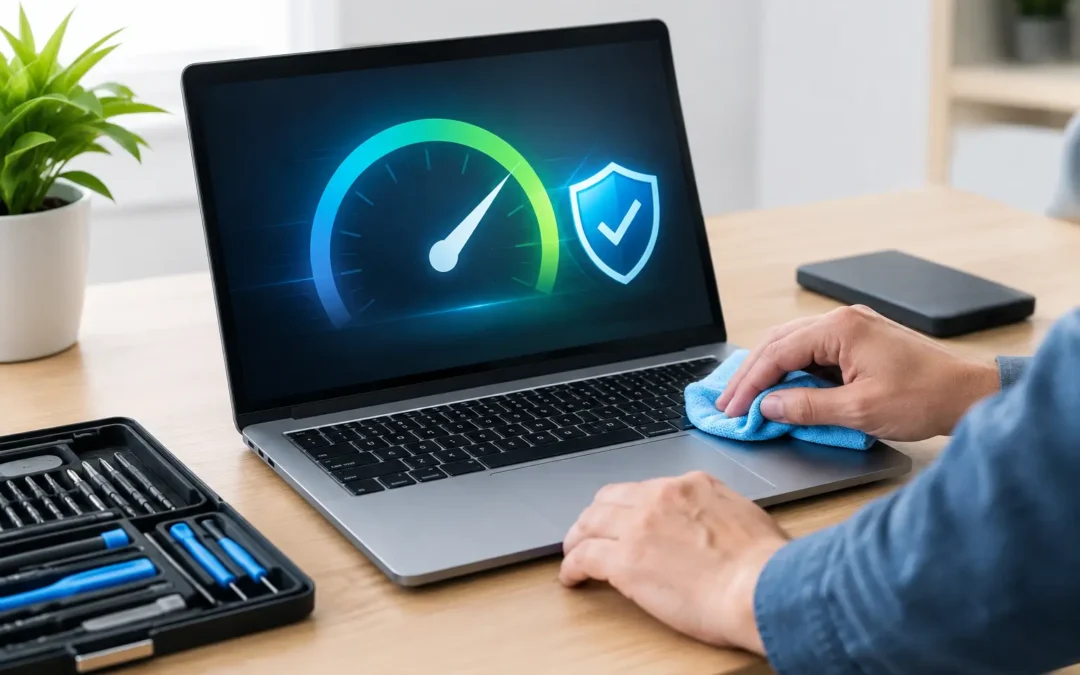
A computer that takes five minutes to open a browser, freezes during a video call, or flashes suspicious pop-ups is not just annoying. It can interrupt work, school, bills, and family life. This computer tune up guide covers the practical checks that can make a real difference without asking you to become your own IT department.
Some slowdowns are easy to fix at home. Others point to a failing drive, overheating system, malware infection, or damaged hardware. The goal is to handle the safe maintenance first, protect your files, and recognize when a local technician should take over.
Start Your Computer Tune Up With a Backup
Before deleting files, changing settings, or running cleanup tools, back up anything you cannot replace. That includes work documents, school assignments, family photos, tax records, passwords stored in local files, and desktop folders.
Use an external drive or a trusted cloud backup service. If your computer is already crashing, making clicking noises, or refusing to boot consistently, do not keep restarting it and hoping for the best. Every extra attempt can make data recovery harder if the storage drive is failing.
A backup is also protection against ransomware and bad cleanup decisions. If a program removes something it should not, you have a way back.
Clear Out Storage Without Deleting What Matters
A nearly full drive can slow down a computer, especially older machines with limited storage. Windows needs working room for updates, temporary files, and virtual memory. When storage gets tight, everyday tasks can start to drag.
Start with the obvious items: old downloads, duplicate photos, unused apps, empty recycle bin files, and large videos you have already saved elsewhere. Review your Downloads folder carefully before clearing it. It often contains installers, forms, and documents people still need.
Check your storage settings to see what is actually using space. Large games, old phone backups, video editing files, and forgotten application folders are common space hogs. Aim to keep a meaningful amount of free space available rather than filling the drive to its limit.
Do not delete random folders from Program Files, Windows, or system directories to make room. That can turn a slow computer into a computer that will not start.
Remove Programs That Start With Your PC
Many computers feel slow before you even open an app because too many programs launch automatically at startup. Cloud storage, chat apps, printer utilities, game launchers, update helpers, and trial software can all compete for memory and processing power.
Open your startup app settings and look for programs you do not need immediately. Disable nonessential items, then restart the computer and see whether startup improves. Keep security software, touchpad tools, audio drivers, and other hardware-related utilities enabled unless you know what they do.
Be selective. Disabling every startup item is not always better. The right choice depends on how you use the computer and which services need to be ready when you sign in.
Install Updates, Then Restart
Putting off updates can create more than a minor inconvenience. Operating system, browser, and security updates often fix bugs, close security gaps, and improve compatibility with newer apps and devices.
Run available updates for your operating system, web browser, and major applications. Restart afterward, even if the computer seems fine. A restart clears temporary memory issues and lets many updates finish properly.
Driver updates deserve a little more caution. For common hardware like graphics cards, Wi-Fi adapters, and printers, use the computer manufacturer or hardware maker’s official update tool when possible. Avoid websites that promise to update every driver with one click. Many are aggressive, unnecessary, or bundled with software you do not want.
Run a Real Security Check
Pop-ups, redirected searches, unfamiliar browser extensions, sudden ads, and a computer that runs hot while sitting idle can all point to malware. So can unexpected password reset emails or software you do not remember installing.
Make sure your antivirus protection is active and current, then run a full system scan. A quick scan is useful, but a full scan is more thorough when the computer has been behaving strangely. Remove suspicious browser extensions and uninstall unfamiliar programs you cannot identify.
If the scan finds repeated threats, your files are encrypted, or the computer will not let you open security tools, stop entering passwords and get professional help. Malware can capture sensitive information, and rushed fixes sometimes leave the infection behind.
Clean Up Your Browser
A browser with dozens of open tabs, extensions, and saved site data can make a perfectly capable computer feel worn out. Close tabs you are not using, remove extensions that have no clear purpose, and update the browser.
Extensions deserve special attention. A coupon finder, PDF converter, toolbar, or search helper may seem harmless, but poorly made or malicious extensions can slow browsing and track activity. Keep only the tools you recognize and use regularly.
Clearing cached files can help if websites load incorrectly or the browser is sluggish, but it may sign you out of sites. Make sure you know your important passwords first. If saved passwords are your only copy, address that before clearing browser data.
Check Heat, Noise, and Power Problems
Software is not always the reason a computer slows down. Dust buildup can trap heat inside a desktop or laptop, forcing the processor to reduce speed to avoid damage. A loud fan, hot keyboard area, sudden shutdowns, or performance drops during gaming and video calls are warning signs.
For a desktop, make sure vents are clear and the tower is not pushed into a tight cabinet. For a laptop, use it on a hard, flat surface instead of bedding or a couch cushion that blocks airflow. You can gently clean exterior vents with compressed air, but opening a device has risks if you are unfamiliar with the hardware.
Battery issues can also affect performance. If a laptop only works while plugged in, drains unusually fast, or has a swollen case or trackpad area, stop using it and arrange a repair. A swollen battery is a safety issue, not a tune-up task.
Know When a Tune-Up Is Not Enough
A little maintenance can improve many computers, but it cannot repair worn-out hardware. A traditional hard drive may be failing if you hear clicking, see frequent blue screens, or experience long freezes while files load. An older computer with too little memory may need an upgrade rather than more cleanup.
Bring in a technician when you notice repeated crashes, liquid damage, broken charging ports, a cracked screen, a no-boot condition, or possible data loss. The same applies if you suspect malware but cannot confidently remove it. For Houston customers who need clear answers and fast local service, Phone Repair Ambulance can diagnose computer problems, remove viruses, and help determine whether repair, upgrade, or replacement is the smarter move.
Keep Your PC Running Well After the Tune-Up
You do not need to repeat every step every week. A simple routine goes a long way: install updates when they are available, keep security protection active, review startup apps every few months, and back up important files on a schedule.
Pay attention when your computer changes behavior. A slow startup that appears once may be temporary. A slow startup that gets worse each day, paired with crashes or strange noise, is your cue to act before a small problem becomes a lost-data emergency. A few minutes of maintenance now can save you hours of disruption later.