
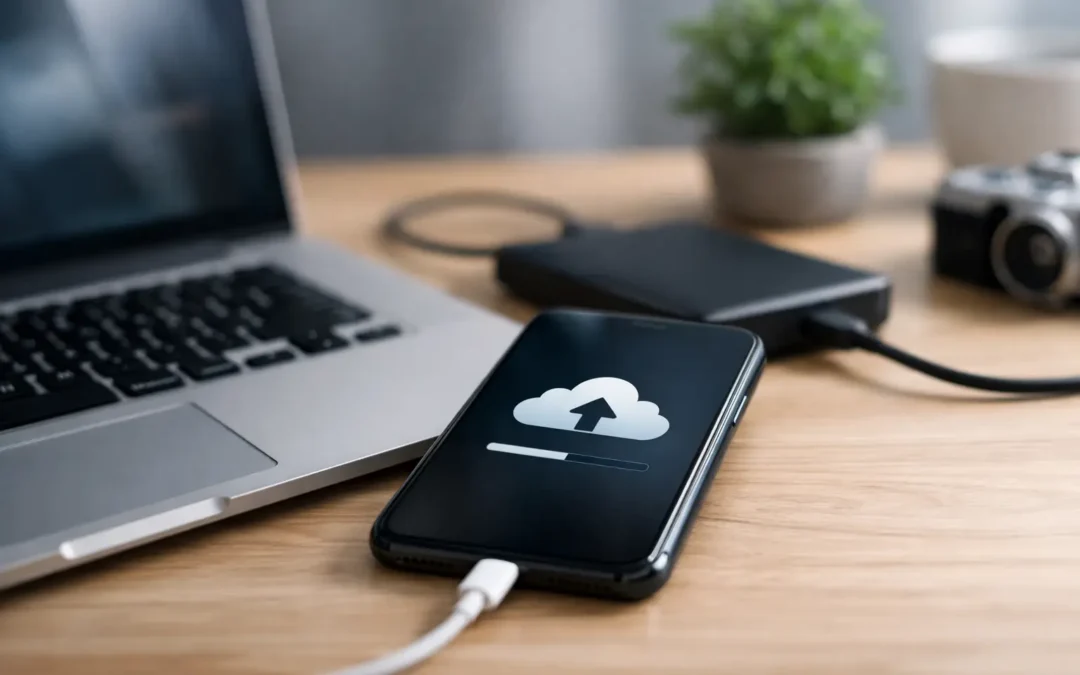
A cracked screen is frustrating. A phone that will not turn on after a drop or water exposure is worse. Losing the photos, messages, work files, and contacts stored on it can be the real emergency. Knowing how to back up iPhone takes a few minutes when your phone is working and can save years of memories and important information later.
For most people, the best answer is simple: turn on automatic iCloud Backup and check that it is actually completing. A computer backup is also a smart second option, especially before an upgrade, a repair, or any situation where your iPhone has started acting unpredictable.
What an iPhone Backup Actually Saves
An iPhone backup creates a copy of information that is not already syncing somewhere else. Depending on your settings, that can include app data, device settings, Home Screen layout, messages, call history, photos and videos, health information, and data from apps that support backup.
There is one detail that catches people off guard: an iCloud backup does not necessarily contain everything you see on your phone. If you use iCloud Photos, for example, your photo library syncs to iCloud separately and is not duplicated inside the daily device backup. The same can be true for contacts, calendars, notes, and other items that already sync through iCloud, Gmail, Microsoft, or another account.
That is usually good news. It prevents duplicate storage use. But it also means you should confirm that the services holding your most valuable data are syncing correctly. A backup is only useful if it includes what you expect to recover.
How to Back Up iPhone With iCloud
iCloud Backup is the easiest choice for most Houston families, students, and busy professionals because it can run automatically. Once it is set up, your iPhone backs itself up when it is charging, connected to Wi-Fi, locked, and has enough available iCloud storage.
Open Settings, tap your name at the top, then choose iCloud. Select iCloud Backup and turn on Back Up This iPhone. If you want immediate confirmation, tap Back Up Now and keep the phone connected to Wi-Fi until it finishes.
Below that button, look for the date and time of the last successful backup. Do not assume it happened just because the setting is switched on. A full iCloud account, unreliable Wi-Fi, or a phone that rarely charges overnight can prevent automatic backups from finishing.
Check Your iCloud Storage Before You Need It
Free iCloud storage can fill up quickly, especially if you take a lot of photos or have several Apple devices. Go to Settings, tap your name, choose iCloud, then select Manage Account Storage or Storage. You can see what is using space and whether your backup has room to complete.
If storage is full, you have choices. You can remove old device backups you no longer need, review large files, or move to a larger iCloud storage plan. Before deleting anything, make sure it is not the only copy of data you care about. Deleting an old phone backup is fine if that phone is no longer in use and its data has already moved to your current device.
How to Back Up iPhone to a Mac or Windows PC
A computer backup gives you a local copy of your iPhone. It is a strong option when your iCloud storage is limited, your internet connection is slow, or you want an extra backup before sending a device in for service or replacing it.
On a Mac running macOS Catalina or later, connect your iPhone with a cable and open Finder. Select your iPhone in the sidebar, then choose Back up all of the data on your iPhone to this Mac. Click Back Up Now.
On a Windows PC, or an older Mac, use the Apple Devices app or iTunes, depending on what is installed on your computer. Connect the iPhone, select it, choose the option to back up to the computer, and start the backup.
For the most complete local backup, select Encrypt local backup before starting. You will create a password, so store it somewhere safe. An encrypted backup can include saved passwords, Wi-Fi settings, Health data, and other sensitive information that an unencrypted backup may leave out.
Do not lose that encryption password. Without it, you cannot restore the encrypted backup. This is one area where convenience and security come with a trade-off.
When a Computer Backup Is the Better Move
iCloud is convenient, but a computer backup can be the better choice before a major event. Use one if you are preparing to erase your phone, switch to a new iPhone, update a device that is low on storage, or bring in an iPhone with signs of damage.
It is also helpful if the phone has a failing screen, battery issue, charging problem, or random restarts. Back it up while you still can. Waiting until the device is completely unusable can turn a straightforward repair into a data-recovery situation.
Before Repair, Water Damage, or an Upgrade
A repair should not erase your data, but no responsible technician can promise that a severely damaged phone will stay stable through every step of diagnosis and repair. A backup protects you if the phone must be reset, if existing damage worsens, or if a component failure was already developing.
Before handing over your iPhone, take a few practical steps:
- Run a fresh iCloud or computer backup and confirm the completion time.
- Make sure you know your Apple Account password and your iPhone passcode.
- Check that your photos, contacts, and messages are syncing as expected.
- If instructed by your repair provider, turn off Find My iPhone only after your backup is complete.
For water damage, move faster. Do not keep trying to charge the phone or repeatedly turn it on if it is acting strange. If it still responds, back it up over Wi-Fi or to a computer right away. If it does not respond, a qualified technician may be able to stabilize the device or recover data, but the odds are better when you avoid adding power to a wet phone.
Confirm Your Backup Worked
The fastest check for iCloud is the last backup date shown in Settings > your name > iCloud > iCloud Backup. Make sure the date is recent and the status does not show an error.
For a Mac backup, connect the phone again and open Finder. The device page displays the latest backup date and time. In Apple Devices or iTunes on Windows, look under the backup section for the most recent local copy.
Do not stop at the date if you have a specific concern. Open Photos and confirm recent photos are present in iCloud if you use iCloud Photos. Check that new contacts appear in your synced account. If you rely on an app for work, school, banking, or authentication, look in that app’s settings to see whether it has its own backup, cloud sync, or recovery method.
What to Do When iPhone Backup Fails
Backup errors are common and usually fixable. Start with the basics: connect to reliable Wi-Fi, plug the iPhone into power, restart it, and install any available iOS update. Then check iCloud storage. A backup cannot finish if there is no room for it.
If iCloud Backup continues to fail, a computer backup may get your data protected sooner. That is especially useful when you need repair service the same day and do not have time to troubleshoot a cloud error for hours.
If your iPhone is damaged, stuck on the Apple logo, will not charge, or has a screen you cannot reliably use, do not erase it before speaking with a technician. Erasing may remove the data recovery options that are still available. Phone Repair Ambulance can assess damaged iPhones locally and help you understand the next practical step before a small device problem becomes a bigger data problem.
Your backup does not need to be complicated. Set iCloud Backup to run automatically, verify it once in a while, and make a fresh encrypted computer backup before repairs, upgrades, or travel. The best time to protect what is on your iPhone is while you can still unlock it.