
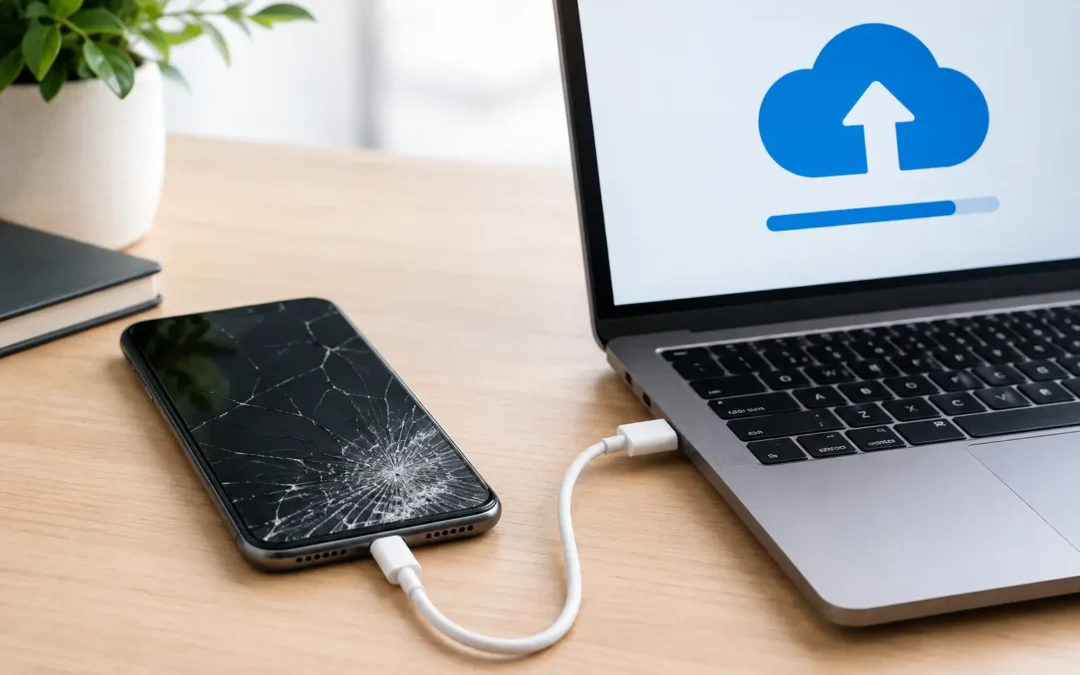
A cracked screen is stressful. A wet iPhone that suddenly goes black is worse, especially when your photos, messages, work files, and family contacts are still inside it. Knowing how to backup a damaged iPhone can protect what matters before repair begins, but the right move depends on whether the phone still turns on, unlocks, and connects.
Your first priority is to avoid making the damage worse. If the iPhone was exposed to water, unplug it, power it off if you can do so normally, and do not charge it. If it is overheating, swelling, or giving off an unusual smell, stop using it altogether. A backup is valuable, but safety and preventing further internal damage come first.
Start by Checking Whether a Backup Already Exists
Before trying to operate a damaged phone, check whether your data may already be protected. Many iPhones automatically back up to iCloud when they are connected to Wi-Fi, plugged into power, and locked. If automatic backup was enabled before the accident, your latest photos, app data, device settings, and messages may be available already.
From another Apple device signed into the same Apple Account, review your iCloud storage and recent device backups if you have access. You can also sign in through a trusted computer to see what iCloud data is syncing. Photos, contacts, notes, calendars, and iCloud Drive files may be current even if the full device backup is not.
Do not assume everything is covered. iCloud Photos syncs your photo library separately, while some apps store data only on the phone or in their own cloud accounts. Two-factor authentication apps, recent text messages, downloaded files, and certain app conversations can be the items people miss most.
How to Backup a Damaged iPhone That Still Works
If the screen works well enough to unlock the phone and you can connect to Wi-Fi, make an iCloud backup first. Open Settings, tap your name, select iCloud, then iCloud Backup. Choose Back Up Now and keep the phone connected to reliable Wi-Fi and power until it finishes.
Check that you have enough available iCloud storage before you begin. A backup can fail if your account is full, and a badly damaged phone may not stay stable long enough for multiple attempts. If your phone is hot, its battery is draining quickly, or the display is flickering, move quickly but do not keep it plugged in if there is any chance of liquid damage.
A computer backup is often the better choice when Wi-Fi is slow, iCloud storage is full, or you need the most complete copy possible. On a Mac, connect the iPhone with a cable, open Finder, select the device, and choose to back up all data to the Mac. On a Windows PC, use the Apple Devices app or iTunes, depending on what is installed on your computer.
Choose an encrypted local backup if possible. Encryption includes saved passwords, Health data, Wi-Fi settings, and other information that a standard computer backup may leave out. Save the encryption password somewhere secure. Without it, you cannot restore that encrypted backup later.
When the backup is complete, confirm the date and time shown by Finder, Apple Devices, or iTunes. Do not simply see the progress bar disappear and assume the job is done.
If the Screen Is Broken but the Phone Turns On
A shattered display does not always mean the iPhone is unusable. If you can see the screen, even partially, back it up as soon as possible. You may need to rotate the phone, increase brightness, or remove a damaged screen protector to read the prompts.
The harder situation is a black display with an iPhone that still vibrates, rings, receives calls, or makes notification sounds. In that case, a computer backup may be possible only if that computer was already trusted by the iPhone. Apple requires you to unlock the phone and approve a trust prompt before a new computer can access its data. If the screen is completely dead, you may not be able to approve that prompt.
If you have previously connected the iPhone to a personal Mac or PC, try that same computer and cable. Open Finder, Apple Devices, or iTunes and see whether the iPhone appears. If it does, start an encrypted backup immediately. Avoid trying random computers at work, school, or a friend’s house. They will likely require the trust prompt you cannot see or approve.
Do not repeatedly force restart the phone just because the display is black. A restart can help with a temporary software freeze, but it will not fix a physically damaged display or a water-damaged board. More importantly, every extra attempt uses time and battery that may be needed to preserve access to your data.
If the iPhone Will Not Turn On
When an iPhone shows no signs of life, a normal backup is not possible until it can power on, unlock, and communicate. That does not mean the data is gone. Modern iPhones store data in encrypted internal storage, and successful repair may restore access to it.
Start with the basics only if the phone was not exposed to liquid and does not show signs of swelling or overheating. Try a known-good cable and power adapter, then leave it connected for up to 30 minutes. Check the charging port for visible lint or debris, but do not insert metal tools into the port.
For a phone with liquid exposure, skip charging it. Water and electricity are a bad combination, and charging a wet device can cause additional damage to the charging circuit or logic board. Rice is not a reliable fix either. It does not remove moisture from inside the phone, and loose particles can create another problem.
A professional assessment is your best next move when the phone will not power on. The goal is not just to replace a screen or battery. If your data matters, tell the technician that data preservation is the priority before any repair work starts. That changes the repair plan, especially after water damage or a severe drop.
Protect Your Data Before Handing Over Your Phone
If you can still access the iPhone, complete the backup before a repair whenever possible. Then verify your photos, contacts, and essential files are present in iCloud or in your computer backup. If you use authenticator apps for banking, work, or school, make sure you have recovery codes or another way to sign in after repair or replacement.
You may be asked to disable Find My iPhone before certain repairs. Do that only when you are ready and only through a repair provider you trust. Never share your Apple Account password, banking PIN, or device passcode unnecessarily. A reputable technician can explain exactly what access is needed and why.
If the screen works but touch is unreliable, write down your passcode before you leave home. You may need it after the display is repaired so the device can be tested and the backup can be confirmed. Avoid factory resetting the iPhone to solve a hardware issue. A reset can erase the very data you are trying to save.
When Fast Local Repair Makes the Difference
A damaged iPhone can become less recoverable with every failed charge attempt, accidental drop, or day spent waiting. That is especially true for water-damaged devices. Fast diagnosis gives you the best chance to restore the phone long enough to complete a backup or recover the data you need.
For Houston customers, Phone Repair Ambulance can assess screen damage, charging failures, battery issues, and water exposure with data preservation in mind. Explain what happened, whether the phone still powers on, and whether you have a recent backup. Those details help a technician choose the safest first step instead of treating every damaged device the same way.
Your iPhone does not have to look perfect to be worth saving. If it still responds, make the backup now. If it does not, stop experimenting, keep it safe, and get it checked before a small repair problem turns into a permanent data loss.