
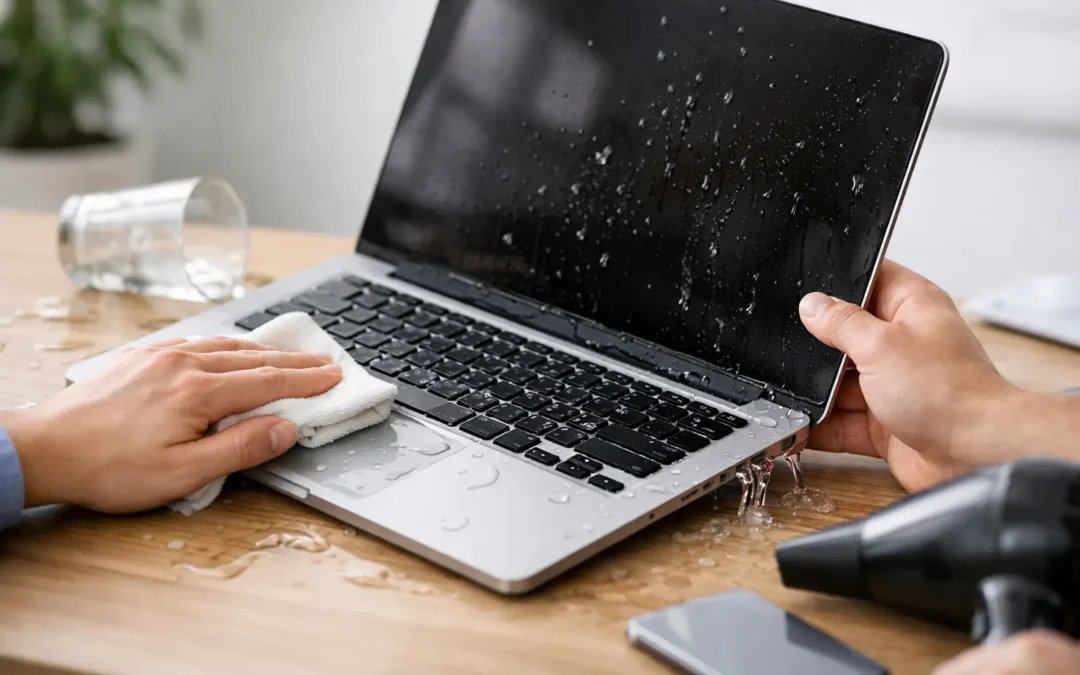
A laptop spill can go from a minor accident to a costly repair in the time it takes to answer one more email. If you need to know how to recover a wet laptop, focus on one goal first: stop electricity from moving through wet components. What you do in the next few minutes can make the difference between a cleanable spill and a damaged logic board.
Water damage is not always obvious. Your laptop may appear normal immediately after a spill, then fail later as moisture causes corrosion or creates a short. Move quickly, skip the internet myths, and get the device evaluated if liquid reached the keyboard, charging port, vents, or bottom case.
Turn It Off Immediately
If the laptop is on, force it to shut down. Hold the power button until the screen goes black. Do not save files, close programs, or wait for a normal shutdown. Saving a document is not worth sending power through a wet keyboard or internal circuit.
Next, unplug the charging cable, USB devices, external monitors, headphones, SD cards, and anything else connected to the laptop. If your model has a removable battery, remove it after disconnecting power. Most current MacBooks and many newer Windows laptops have internal batteries, so do not start taking the case apart unless you have the proper tools and know your model.
If the spill happened while the laptop was already off, do not turn it on to test it. A device that has not received power after a spill has a better chance of avoiding a serious short.
What to Do With a Wet Laptop Right Away
Once it is powered down and unplugged, gently blot visible liquid with a clean, lint-free cloth or paper towel. Do not press hard on the keys. Pushing liquid deeper into the keyboard can send it straight toward the motherboard, battery, trackpad, or display connections.
Place the laptop on a dry towel in an inverted V position, with the keyboard facing down and the screen partially open. This helps liquid drain out rather than settle inside. Keep it in a dry area with normal room airflow. A fan circulating air nearby is fine, but do not aim intense heat directly at the device.
For the first several minutes, avoid these common mistakes:
- Do not plug it in, even if the battery is low.
- Do not press keys repeatedly to see whether they work.
- Do not use a hair dryer, heat gun, oven, or direct sunlight.
- Do not put the laptop in rice.
- Do not shake it aggressively.
Rice does not remove liquid from under chips or connectors, and rice dust can create another cleanup problem. Heat can warp plastic parts, damage the battery, loosen adhesives, and speed up corrosion in the wrong places. The safest move is still power off, drain, dry, and inspect.
The Liquid Matters More Than Most People Think
Plain water is usually less damaging than other drinks, but it can still cause corrosion and electrical shorts. Coffee, soda, juice, sports drinks, wine, milk, and sweet tea leave residue behind after the moisture evaporates. That residue can remain conductive, sticky, acidic, or corrosive. A laptop that works after a soda spill may still develop failed keys, charging issues, random shutdowns, or motherboard damage days later.
Saltwater is especially urgent because salt accelerates corrosion. If saltwater, a sugary beverage, or anything sticky reached the laptop, home drying alone is rarely enough. The device needs professional internal cleaning as soon as possible.
The amount and location of the spill matter too. A few drops on the edge of an aluminum case are different from a full glass poured across the keyboard. Liquid near a vent, charging port, speaker grille, hinge, or trackpad can reach internal components quickly.
How Long Should You Wait Before Turning It On?
There is no safe universal timer. Waiting 24 to 48 hours can help surface moisture evaporate, but it does not remove residue or confirm that liquid has not reached sensitive components. A laptop may feel dry outside while moisture remains underneath the keyboard or on the logic board.
For a very small spill that only touched the exterior, a full drying period may be enough. For a spill that went through the keyboard, under the bottom case, or into any port, do not treat time as a repair method. The better choice is an internal inspection and cleaning before power is restored.
If you absolutely cannot get the laptop checked immediately, leave it unplugged and powered off in its draining position. Do not keep trying it every few hours. Each test can turn a recoverable liquid exposure into a more expensive board-level failure.
Protect Your Files Without Risking the Laptop
Your files may be recoverable even if the laptop will not start. The key is not to repeatedly power it on to check. If the storage drive is intact, a trained technician may be able to recover data after safely disconnecting or repairing the affected hardware.
For work laptops, school devices, and computers with family photos or business records, tell the repair technician that data is a priority before any repair begins. That gives them a chance to assess the storage and recommend the least risky path. If you use cloud backups, you may already have copies of recent files, but avoid logging in from the wet device until it has been inspected.
If the laptop does turn on after drying, back up critical files only after you are confident there is no ongoing liquid damage. Watch for warning signs such as a burning smell, flickering screen, unresponsive keys, fan noise, charging problems, overheating, or unexpected shutdowns. Turn it off again if any of these appear.
When a Professional Wet Laptop Repair Is the Smart Move
A professional evaluation is recommended whenever liquid entered the keyboard, ports, vents, or bottom cover. It is also the right call if the laptop was powered on during the spill, if it will not turn on, or if it has started behaving differently afterward.
Proper water-damage recovery is more than leaving a device on a shelf. A technician can open the laptop safely, disconnect internal power, inspect for corrosion, clean residue from the board and connectors, and test components that are often affected by spills. Depending on the damage, the repair may involve keyboard replacement, battery replacement, charging-port repair, display service, or board-level work.
The trade-off is simple: a professional cleaning costs more than waiting at home, but early service can prevent corrosion from spreading and reduce the chance of losing a motherboard or your data. Waiting is most risky with sugary drinks, saltwater, and spills that occurred while the device was charging.
Houston customers who need fast help can bring a wet laptop to Phone Repair Ambulance for an assessment or ask about local service options. A clear diagnosis is better than guessing whether the laptop is safe to power on.
After the Spill: Watch for Delayed Damage
Even after repair or drying, monitor the laptop for the next few weeks. Liquid damage can be delayed because corrosion develops gradually. Notice whether the battery drains faster, the keyboard starts repeating keys, the trackpad becomes erratic, USB devices disconnect, or the laptop only charges at a certain angle.
Keep a backup routine going forward. Automatic cloud backup plus a separate external backup is the safest approach for important work, school, and family files. Accidents happen fast, but a current backup keeps a wet laptop from becoming a data-loss emergency.
The best next step is not to hope the laptop dries out. Keep it off, keep it unplugged, and get it checked before one small spill has time to become permanent damage.