
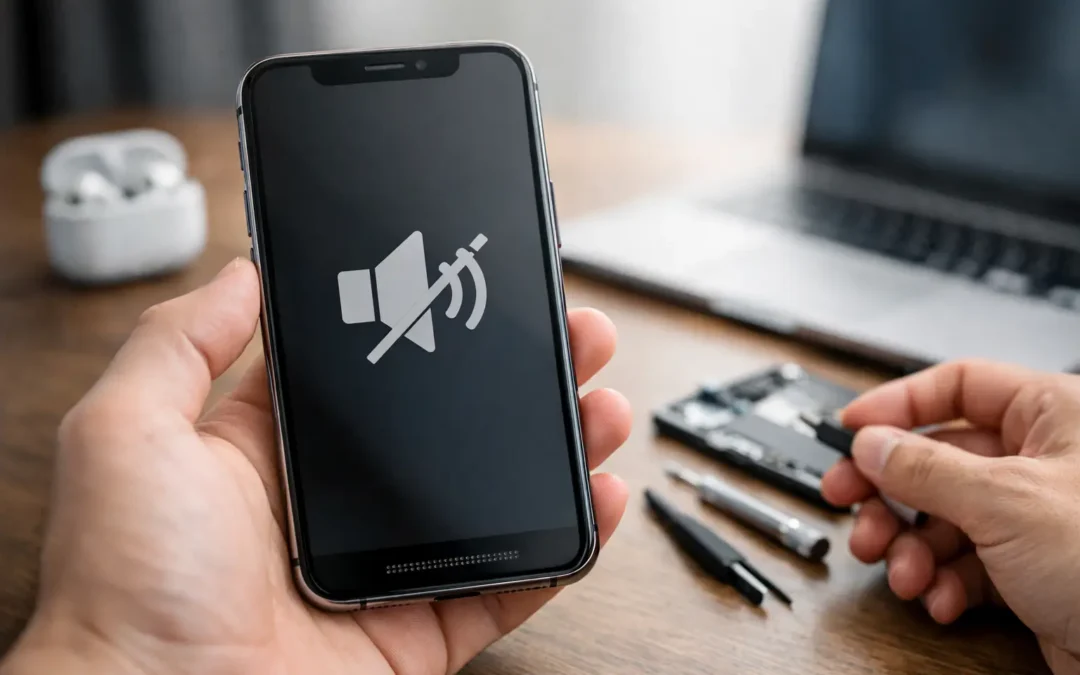
Your alarm goes off silently. A work call comes in and you cannot hear the other person. Or a video plays with the volume all the way up but your iPhone is still quiet. An iPhone speaker not working fix can be as simple as changing one setting, but it can also point to a blocked speaker grille, water exposure, or damaged internal hardware.
Before you assume the phone needs a replacement, take a few minutes to narrow down the problem. The goal is to identify whether you have a settings issue, a connection issue, or a speaker that needs professional repair.
Start by identifying which speaker is not working
Modern iPhones use more than one speaker. The bottom speaker handles most music, videos, speakerphone calls, alarms, and notification sounds. The earpiece speaker at the top of the display handles regular phone calls when you hold the phone to your ear.
That distinction matters. If music and speakerphone sound normal but phone calls are very quiet at your ear, the top earpiece may be clogged or failing. If calls sound fine at your ear but videos, ringtones, and speakerphone are silent, the bottom speaker or its connection may be the problem.
Also test more than one app. Play a video, make a phone call, try speakerphone, and listen to a ringtone preview. If only one app has no sound, the issue is likely in that app’s volume or permissions rather than the iPhone speaker itself.
Quick iPhone speaker not working fixes to try first
Most sound problems do not require tools. Work through these checks in order, and test the sound after each one.
Turn up the correct volume
Press the volume-up button while a video or ringtone is actively playing. Your iPhone stores different volume levels for media, calls, alerts, and some apps. Raising the volume from the Home Screen may not raise the volume for the sound you are trying to hear.
Check that the Ring/Silent switch, if your model has one, is not set to silent. On newer models, review the Action button settings as well. Silent mode will not stop media audio, but it can make it seem like your speaker has failed when notifications and calls no longer ring.
Disconnect Bluetooth devices
Your iPhone may be sending audio to AirPods, a car stereo, a Bluetooth speaker, or another device you forgot was connected. Open Control Center and look at the audio output option in the Now Playing panel. Choose iPhone instead of the connected accessory.
For a quick test, turn Bluetooth off temporarily in Settings. Then play a video again. If your sound returns, the iPhone speaker is working and the problem is simply where the audio was being routed.
Restart the iPhone
A restart clears minor software glitches that can affect audio, especially after an app freezes, an update installs, or the phone reconnects to a vehicle. Turn the iPhone off completely, wait about 30 seconds, then power it back on.
If the phone is frozen, use the force-restart method for your iPhone model. This does not erase your data. Once it starts back up, test the ringer, a video, and a phone call before moving to more involved steps.
Remove the case and screen protector
A poorly fitted case can cover part of the bottom speaker area. Some screen protectors can also overlap the earpiece grille at the top of the display. Remove them briefly and test your audio again.
This is especially common after a new case is installed or after a screen protector shifts following a drop. If sound improves immediately, the fix is an accessory change, not a phone repair.
Clean the speaker openings carefully
Pocket lint, dust, makeup, and moisture can reduce sound dramatically. A speaker grille does not need to be completely blocked to make voices sound muffled or distant.
Use a clean, dry, soft-bristled brush to gently sweep across the speaker openings. Keep the iPhone facing downward so loosened debris falls away from the device. A dry microfiber cloth can help around the edges.
Do not spray cleaner into the grille. Do not use a pin, paper clip, toothpick, compressed air, or a strong vacuum. Those methods can push debris further inside, puncture the protective mesh, or damage the speaker components. If the sound is still muffled after careful cleaning, a technician can inspect and clean the area safely.
Check for water exposure before charging or testing further
If the speaker stopped working after rain, a spill, a bathroom drop, or heavy humidity, water may be the cause. Even water-resistant iPhones can lose that protection over time, particularly after drops, screen damage, or previous repairs.
Disconnect charging cables and accessories if you suspect moisture. Dry the exterior with a lint-free cloth and place the phone in a dry, ventilated location with the port facing down. Do not put it in rice. Rice dust can get into ports, and it does not reliably remove moisture trapped inside the device.
Avoid repeatedly charging or blasting audio through a wet speaker to force water out. If you see a liquid-detection warning, hear crackling audio, or notice charging problems along with the speaker issue, get the phone inspected promptly. Water damage can spread from one component to another.
Rule out a software issue
If your iPhone speaker works sometimes but not consistently, software may be involved. Start by checking for an iOS update in Settings. Updates can correct bugs that affect calls, media playback, and Bluetooth behavior.
Next, check whether the issue happens in every app. If it only affects one app, close the app completely, reopen it, and make sure the app is updated. You can also check that Do Not Disturb or another Focus mode is not silencing the alerts you expect to hear.
As a later step, you can reset all settings. This restores settings such as Wi-Fi networks, Bluetooth pairings, display preferences, and notification choices without deleting photos, messages, or apps. It is more disruptive than a restart, so use it only after the simpler checks fail. Back up your iPhone first whenever possible.
A full factory reset should not be your first move for a speaker problem. It takes time, requires a backup plan, and will not solve a damaged speaker, loose connection, or water-damaged audio component.
Signs the speaker needs professional repair
A hardware issue becomes more likely when the problem started right after a drop, impact, water exposure, or charging-port damage. Distorted sound, crackling, unusually low volume, and sound that cuts in and out are also common signs that cleaning and settings changes may not be enough.
You should also consider repair if the phone only works on speakerphone intermittently, the earpiece stays silent during every call, or audio fails alongside microphone, charging, or Face ID problems. These symptoms can involve more than the speaker itself.
There is a trade-off in waiting. A minor blockage may stay minor, but a moisture-related or impact-related issue can worsen with normal use. Continuing to press, poke, or aggressively clean a damaged grille can make a straightforward repair more complicated.
Get a clear diagnosis before replacing the phone
A silent iPhone does not automatically mean you need a new device. A trained technician can test the bottom speaker, earpiece, audio routing, charging port area, and related internal connections to find the actual source of the problem.
For Houston customers who need their phone back quickly, Phone Repair Ambulance can inspect iPhone audio issues and explain what is causing the failure before repair work begins. That is often the fastest path when quick troubleshooting has not restored sound, especially after a drop or liquid exposure.
Your phone handles calls from family, directions on the road, school updates, and work alerts. If the basic checks do not bring the sound back, stop guessing and get the speaker checked before a small audio problem becomes a bigger interruption.