
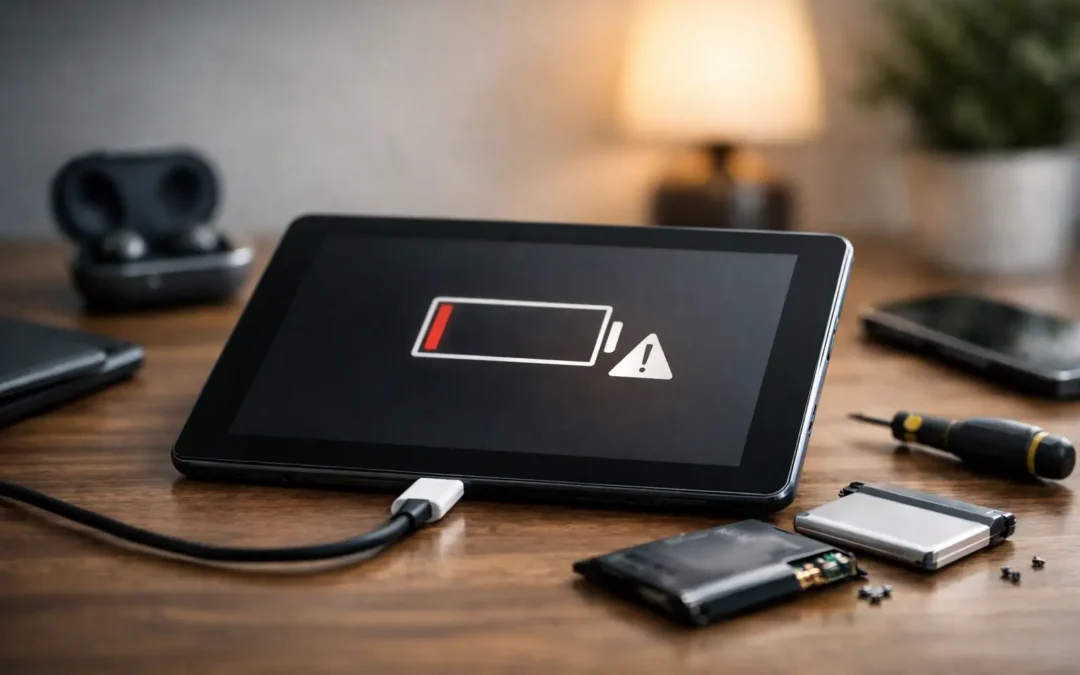
A tablet that drops from 80% to 30% before lunch is more than inconvenient. It can interrupt a child’s schoolwork, derail a work call, or leave you without directions and communication when you need them. Understanding tablet battery draining fast causes helps you separate a quick settings fix from a hardware problem that needs prompt attention.
The Most Common Tablet Battery Draining Fast Causes
Battery drain is not always caused by the battery itself. Tablets use extra power when the screen stays bright, apps keep working in the background, wireless connections search for signals, or the system is under heavy load. Older devices can have several of these issues happening at once.
Bright screen settings and long screen-on time
The display is usually one of the biggest battery users on an iPad, Samsung Galaxy Tab, or other tablet. A bright screen is useful outdoors, but leaving brightness near maximum indoors can cut battery life noticeably. High refresh-rate displays, always-on display features, and long video streaming sessions add to that demand.
Start by lowering brightness to a comfortable level and turning on auto-brightness if it works well for your environment. Reducing the screen timeout is another simple improvement. If the tablet stays awake for several minutes after you set it down, it is spending battery power for no good reason.
Background apps that will not settle down
Some apps use power even when you are not actively using them. Social media, email, location-based services, cloud backups, navigation, streaming, and games can refresh content or track location in the background. One poorly behaving app can drain a tablet faster than expected and may also make it feel warm.
Check your device’s battery settings to see which apps used the most power over the last 24 hours or several days. An app at the top of the list is not automatically a problem – video calls and streaming naturally use a lot of power. But an app you barely used that shows unusually high background activity deserves attention. Update it, limit its background permissions, or uninstall and reinstall it if the issue continues.
Weak Wi-Fi or cellular signal
When a tablet struggles to hold a Wi-Fi or cellular connection, it repeatedly searches for a stronger signal. That constant searching can use more power than people expect. This is common in buildings with spotty service, during travel, or when a cellular tablet has limited coverage.
If you are somewhere with no usable signal, turn on Airplane Mode and manually enable Wi-Fi only when needed. At home or work, moving closer to the router or restarting the router may reduce the tablet’s power use. For cellular tablets, compare battery life in different locations. A sharp difference can point to a coverage issue rather than a failing battery.
Software updates, bugs, and syncing
A major operating system update can temporarily increase battery use while the tablet reorganizes files, indexes photos, syncs cloud data, and updates apps. This should improve after a day or two, especially when the device has time to charge and connect to Wi-Fi.
If the drain starts immediately after an update and does not improve, install any follow-up updates. Restart the tablet, then check for apps that need updates as well. Software bugs can cause excessive processor use, failed syncing, or repeated notifications that quietly run down the battery.
Bluetooth accessories and connected devices
Bluetooth keyboards, styluses, headphones, smartwatches, and other accessories usually use modest power. Still, a tablet constantly reconnecting to an accessory can create unnecessary drain. This is particularly worth checking if the battery problem began after pairing a new device.
Turn Bluetooth off for a few hours as a test. If battery life improves significantly, forget and reconnect the accessory, replace its batteries if applicable, or check whether it needs a firmware update.
When Battery Drain Points to a Hardware Problem
Settings can help, but they cannot restore a battery that has worn out or repair damage inside the tablet. Lithium-ion batteries lose capacity over time. The tablet may still show a full charge, but that “full” charge no longer holds as much energy as it did when the device was new.
A worn battery often drains quickly under heavier tasks such as games, video calls, camera use, and streaming. It may also drop in large percentage jumps, shut down before reaching 0%, or take unusually long to charge. Older tablets and heavily used family devices are especially likely to develop these symptoms.
Heat is another warning sign. A tablet can get warm during charging, gaming, or long video calls. It should not become uncomfortably hot while sitting idle or doing basic tasks. Persistent heat can be caused by a failing battery, charging issue, software process, or internal component problem. Continuing to use an overheating device can make the issue worse.
Physical damage matters, too. A hard drop can damage the battery connection or charging components even when the screen remains intact. Water exposure may cause corrosion that slowly affects battery performance days or weeks later. If the back of the tablet is lifting, the screen is separating from the frame, or the device looks swollen, stop charging and using it. A swollen battery needs professional attention right away.
Quick Checks You Can Do Before Scheduling Repair
Before assuming the battery needs replacement, give the tablet a controlled test. Charge it with a known-good cable and wall adapter, not a low-power computer USB port. Then use it normally for a few hours while watching for unusual behavior.
These checks can narrow down the cause:
- Restart the tablet to stop stuck processes and temporary software glitches.
- Review battery usage and remove or restrict apps with unusually high background activity.
- Test a different charging cable, adapter, and wall outlet if charging is slow or inconsistent.
- Turn off Bluetooth, location access, and unnecessary background refresh for one day to compare battery life.
- Install current system and app updates, then allow the tablet time to finish syncing.
Do not keep force-closing every app after each use. On many modern tablets, the operating system manages memory efficiently, and repeatedly reopening apps can use more power. Focus instead on apps that are actually showing excessive battery activity.
It also helps to think about what changed. Did the problem begin after a drop, water exposure, a new app, a software update, or switching chargers? The timing gives a technician useful clues and can save time during diagnosis.
Battery Replacement or Repair: What Makes Sense?
A battery replacement is often the practical choice when the tablet is otherwise working well, holds little charge, and meets your current needs. This can be a cost-effective way to extend the life of a tablet used for school, work, reading, or streaming.
It depends on the device’s age and condition. If the tablet also has a cracked screen, charging-port trouble, storage limitations, or repeated software issues, compare the combined repair cost with replacement options. A trusted technician can inspect the device and give you a clear recommendation rather than pushing a repair that does not make financial sense.
For a tablet that charges only at certain angles, drains while plugged in, or refuses to power on, the issue may be the charging port, cable, adapter, or internal charging circuit instead of the battery. Replacing the battery alone would not solve those problems. Proper testing matters.
Get a Clear Answer Without the Guesswork
Fast battery drain should not force you to plan your day around the nearest outlet. If basic settings changes do not help, or your tablet is hot, swollen, damaged, or shutting down unexpectedly, have it checked before the problem interrupts something important.
Phone Repair Ambulance provides local tablet diagnostics and repair support for Houston customers who need a straightforward answer fast. Bring in the device or arrange convenient service, explain when the draining started, and let a trained technician identify whether the fix is software cleanup, charging repair, or a battery replacement. A tablet that lasts through the day is not a luxury when your work, school, and family life depend on it.