
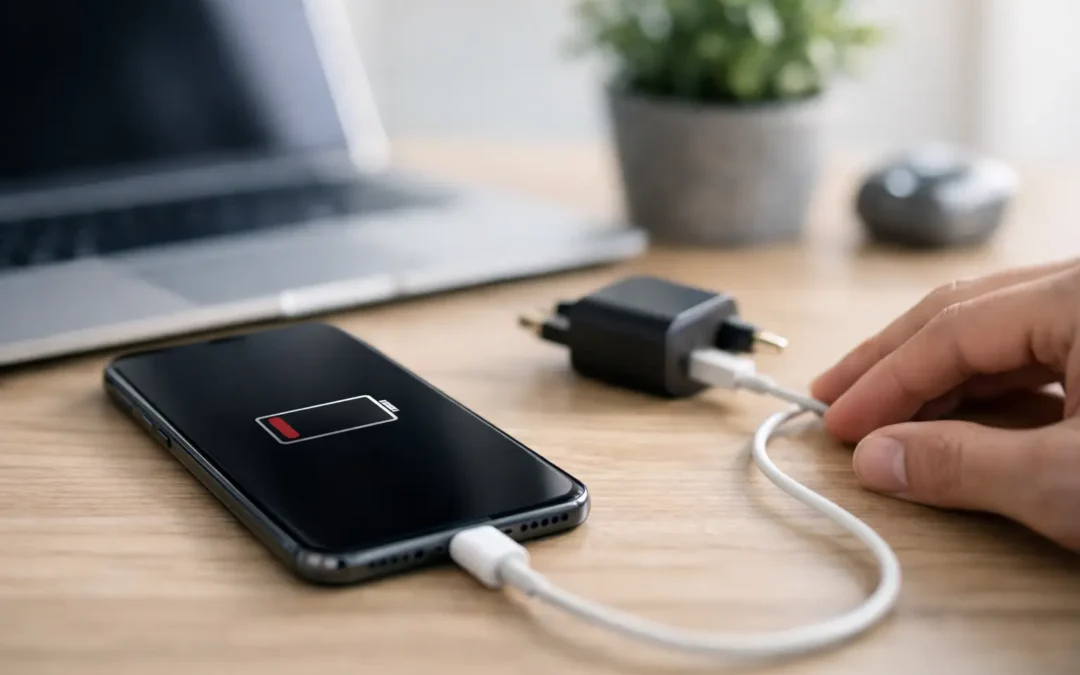
Your phone is at 3%, you plug it in, and nothing happens. Or worse, it charges only when the cable is bent at a certain angle. The top reasons phones stop charging are usually not mysterious, but the right fix depends on whether the problem is the charger, the charging port, the battery, or the phone itself.
Before you assume the phone is done for, take a few simple steps to narrow it down. A fast diagnosis can save you from buying accessories you do not need, losing access to your phone during a busy day, or making damage worse with the wrong cleaning method.
Top Reasons Phones Stop Charging
A bad cable, adapter, or power source
The charging cable is the most common failure point. Cables bend near the connector, get pulled from outlets, ride around in cars, and wear out internally even when the outside looks fine. A damaged cable may charge slowly, connect and disconnect repeatedly, or work only at a certain angle.
Adapters fail too, especially low-quality or heavily used blocks. So can the power source itself. A loose wall outlet, worn power strip, weak USB port in a vehicle, or computer USB port may not deliver enough power to charge your phone reliably.
Start with a known-good cable and wall adapter that are compatible with your phone. Plug them directly into a different wall outlet, not a laptop or power strip. If your phone begins charging normally, the device is likely fine and the accessory was the issue.
Be careful with cheap replacement chargers. They can run hot, charge inconsistently, and may not provide the power your phone needs. Certified, quality accessories cost more upfront, but they are usually less expensive than a damaged charging port or battery.
A clogged charging port
Your pocket is rough on a phone’s charging port. Lint, dust, makeup, food crumbs, and other debris slowly pack into the bottom of the port. The cable may look plugged in, but the connector cannot reach the charging contacts fully.
A common sign is a cable that feels loose, slips out easily, or only charges if you hold it in place. Many people mistake this for a broken port when it is simply compacted debris.
Turn the phone off and inspect the port under bright light. If you can clearly see lint, do not dig into it with a paperclip, safety pin, knife, or anything metal. Those tools can bend or scrape delicate contacts and turn a simple cleanup into a repair. Avoid spraying liquid cleaner into the port as well.
A careful professional cleaning is a smart choice when debris is packed in tightly or the connector still does not fit securely after cleaning. If the port has been damaged, a technician can tell the difference between a clogged port and one that needs replacement.
Liquid or moisture in the charging port
A little rain, a sweaty workout, a spill, or humidity can trigger a moisture warning on newer phones. iPhones and many Android models are designed to pause wired charging when they detect liquid in the connector. That safety feature helps prevent corrosion and electrical damage.
If you see a liquid-detection warning, unplug the cable right away. Gently tap the phone with the port facing down, then leave it in a dry, well-ventilated area. Do not use a hair dryer, put the phone in rice, or force a cable into the port. Heat can damage internal components, while rice dust can create another port problem.
Give the device time to dry. If it still will not charge after several hours, or if the phone was fully submerged, bring it in for a water-damage inspection as soon as possible. Corrosion can continue inside a device even after it seems dry on the outside.
A worn or failing battery
Phone batteries are consumable parts. Every charge cycle slightly reduces their capacity, and heat speeds that wear up. After a few years of daily use, a battery may drain quickly, shut down unexpectedly, refuse to charge past a certain percentage, or take an unusually long time to power up.
A weak battery is not always the reason a phone will not charge. But if the phone only works while connected to power, drops from 30% to 1%, or gets hot during routine charging, battery health should be checked.
Watch for physical warning signs. A swelling battery can push up the screen, separate the back cover, or make the phone feel uneven. Stop charging and using a swollen device. Do not press the screen down or try to open the phone yourself. This is a safety issue that needs prompt professional service.
Battery replacement is often a practical repair, particularly for a phone that otherwise works well and receives current software updates. For an older device with multiple issues, compare the repair cost with a trade-in or replacement option before deciding.
A damaged charging port or internal connection
Charging ports can wear down from years of plugging and unplugging cables. They can also be damaged by a hard drop, liquid exposure, yanking a cable, or using a connector that does not fit correctly. With USB-C, Lightning, and Micro-USB ports, even slight damage can affect the connection.
Signs of a damaged port include no charging with multiple tested cables, a connector that will not click into place, visible bent contacts, or charging that cuts in and out with the slightest movement. Some phones may still charge wirelessly if the wired port has failed, but wireless charging is not a complete answer if you need to transfer data or use wired accessories.
Port repairs require the right tools and experience. Depending on the model, the charging assembly may be a separate replaceable part or may be tied to other internal components. A technician should inspect it before promising a specific fix.
Software glitches and charging settings
Not every charging issue is physical. A frozen operating system, software bug, or power-management error can make a working phone appear dead. If the phone shows no response after being plugged in, leave it on a tested wall charger for at least 20 to 30 minutes, then try a force restart for your model.
If the phone powers on but charges slowly, check for a heat warning, a large number of background apps, or a pending software update. Phones commonly slow or pause charging when they are too hot or too cold. Remove a thick case, move the device out of direct sun, and let it return to room temperature before charging again.
Optimized charging features can also affect what you see. Some phones intentionally pause around 80% or delay the final portion of charging to reduce battery wear. That is different from a phone that cannot charge at all. If the device charges consistently but stops at a predictable percentage overnight, review its battery settings before assuming a repair is needed.
Wireless charging problems
If wired charging works but wireless charging does not, the issue may be the pad, alignment, case, or phone’s wireless charging coil. Thick cases, magnetic accessories, metal plates, and off-center placement can interrupt charging. Remove the case and place the phone directly in the center of a tested wireless charger.
If a wireless charger flashes, starts and stops, or makes the phone hot, discontinue use until you can test another compatible charger. Wireless charging produces more heat than a cable in many situations, so it is best used with quality equipment and good airflow.
What You Can Safely Check Before a Repair
Work through the basics in order: test another cable and adapter, try another wall outlet, inspect the port with a light, and let the phone cool or dry if heat or moisture is involved. Then leave it connected for 20 to 30 minutes before attempting a restart.
Do not keep forcing a loose connector, use damaged cables, scrape the port with metal, or continue charging a phone that is swollen, excessively hot, or showing signs of water damage. Those are the situations where a quick inspection can prevent a larger repair.
When a Charging Problem Needs Fast Help
Schedule service when your phone will not charge with verified accessories, has visible port damage, repeatedly shows a moisture warning, shuts down while charging, or has a lifted screen or swollen battery. If the phone contains work files, school assignments, family photos, or two-factor authentication access, waiting for it to fail completely is rarely the best move.
For Houston customers, Phone Repair Ambulance can inspect charging issues, clean or repair ports, replace failing batteries, and assess water damage without the mail-in delay. Bring the phone, the charger you normally use, and a quick description of what changed before the issue started. That gives the technician a clearer path to the right repair and gets you closer to a phone you can count on again.