
A laptop usually gives you a warning before it quits completely. The trouble is that those warnings often show up during a deadline, a class project, or the moment you need to send an important email. Knowing the top signs your laptop needs repair can help you protect your files, avoid a more expensive breakdown, and get back to work without guessing what went wrong.
Some problems are simple settings issues. Others point to failing hardware, water damage, overheating, or malware. If the same issue keeps returning after a restart, it is time to take it seriously.
Top Signs Your Laptop Needs Repair
It is suddenly much slower than usual
A laptop that has always handled your daily tasks but now takes several minutes to start, freezes while opening a browser, or stalls during video calls needs attention. Slow performance can come from a crowded storage drive, too many startup programs, an aging hard drive, low memory, or a virus.
Do not assume a slow laptop is ready for the trash. A technician can check whether a cleanup, malware removal, storage upgrade, or hardware replacement makes sense. The right fix depends on the laptop’s age, condition, and what you need it to do. For a newer work or school laptop, repair is often the more practical choice.
The battery drains fast or will not charge
If your laptop goes from fully charged to low battery in an hour, shuts down without warning, or only works when plugged in, the battery may be worn out. Batteries lose capacity over time, especially after years of charging cycles and heat exposure.
Charging problems are not always caused by the battery. A damaged charging port, frayed charger, loose internal connection, or motherboard issue can create similar symptoms. If you have tried a compatible charger and the problem continues, avoid forcing the plug or repeatedly bending the cable. That can turn a manageable repair into a larger one.
Your laptop runs hot and the fan is always loud
A fan that runs hard during a demanding game or video export is normal. A fan that sounds like it is working overtime while you are checking email is not. Excessive heat can make a laptop slow down, freeze, restart, or shut off to protect its components.
Dust buildup is a common cause, particularly in laptops used on beds, couches, or fabric surfaces that block airflow. Old thermal paste, a failing fan, and software that is overworking the processor can also be responsible. Keep the vents clear and use the laptop on a firm surface, but do not ignore repeated overheating. Continued heat can damage the battery, storage drive, and motherboard.
The screen flickers, has lines, or stays black
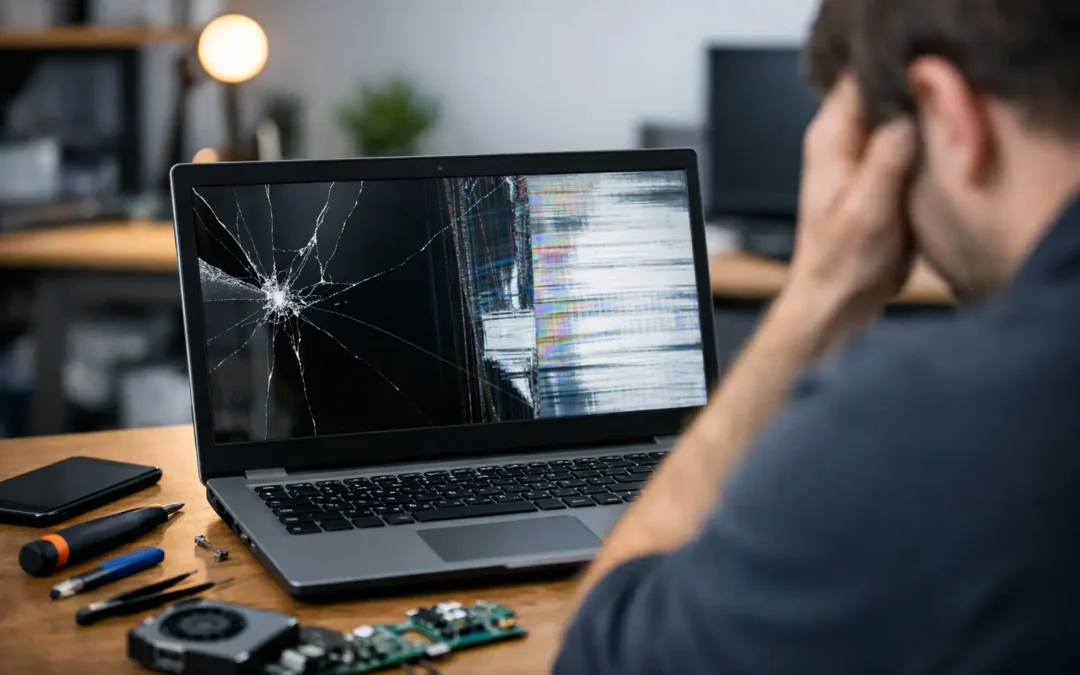
A cracked screen is easy to spot. Other display problems are less obvious. Flickering, colored lines, dark spots, a dim image, or a screen that only works at certain angles can point to a damaged display panel, loose display cable, graphics issue, or liquid damage.
Try connecting the laptop to an external monitor if one is available. If the external display works normally, the problem may be limited to the laptop screen or its cable. If both displays show distortion or no image, the issue may be deeper. Either way, a professional diagnosis can prevent you from replacing parts you do not need.
It crashes, restarts, or shows error messages
One random crash can happen. Repeated blue screens, spinning cursors, restart loops, or error messages are a different story. These issues may be linked to corrupted system files, failing memory, a damaged hard drive or SSD, overheating, recent software conflicts, or malware.
Pay attention to patterns. Does it happen only when charging? When you open a certain app? After the laptop warms up? That information helps narrow down the repair faster. If the laptop starts restarting on its own, back up important files as soon as you can. A device that boots today may not boot tomorrow.
You hear clicking, grinding, or buzzing
Your laptop should not make new mechanical noises. Clicking or grinding can be an urgent warning from a traditional hard drive, while rattling or buzzing may come from a worn cooling fan. A failing hard drive can stop without much notice, taking photos, schoolwork, financial documents, and business files with it.
Turn the laptop off if you hear persistent clicking from inside the device, especially if files are taking longer to open or disappearing. Do not keep restarting it in hopes that the sound goes away. The priority may be recovering your data before replacing the failing part.
The keyboard, trackpad, ports, or webcam stop working
A single sticky key may only need cleaning. Multiple unresponsive keys, a jumping trackpad, USB ports that disconnect, or a webcam that will not activate can indicate a hardware problem. Liquid spills, drops, worn components, driver issues, and internal cable damage are all possible causes.
Ports deserve special attention. If a USB device only works when held at a certain angle, stop using force. A loose port can damage the connected accessory or the laptop’s internal board. The same goes for a charging port that feels wobbly or gets hot while charging.
You see pop-ups, unknown apps, or strange browser changes
A laptop that redirects searches, displays constant pop-ups, opens programs by itself, or runs unusually slowly may have malware. This is more than an annoyance. Malware can expose saved passwords, banking details, personal photos, and business information.
Do not enter passwords or payment information until the device has been checked. Remove suspicious downloads, disconnect from public networks, and have the laptop professionally inspected if the behavior continues. Proper malware removal includes more than deleting a visible pop-up. The system should be scanned, cleaned, updated, and checked for security gaps.
It has been dropped or exposed to liquid
A laptop can appear fine right after a drop or spill, then fail days later. Internal connectors can loosen, screens can develop delayed damage, and moisture can corrode components over time. Coffee, soda, and other sugary drinks are especially risky because they leave residue behind.
If liquid reaches your laptop, turn it off, unplug it, and avoid charging it. Do not use a hair dryer or place it in rice. Heat can push moisture deeper into the device, and rice does not remove corrosion. Fast professional cleaning gives the device its best chance of recovery.
When to Repair Your Laptop Instead of Replacing It
Repair makes sense when the laptop is still meeting your needs aside from one clear problem, such as a failing battery, broken screen, damaged keyboard, charging issue, virus infection, or storage failure. Many laptops get years of useful life from a targeted repair or an upgrade to faster storage.
Replacement may be the better call when several major components are failing, the device cannot run the software you need, or the repair cost is close to the value of a comparable replacement. A clear diagnosis helps you make that decision with real information instead of frustration.
Before bringing in your laptop, write down the symptoms, when they started, and any recent drops, spills, software updates, or new programs. If the laptop still turns on, back up important files to a secure drive or cloud account. Bring the charger too, since charging behavior can be part of the diagnosis.
For Houston customers dealing with a laptop that cannot wait, Phone Repair Ambulance can inspect the issue, explain the repair options in plain language, and help you move forward without mail-in delays. A laptop does not have to be completely dead to deserve service. Acting when the warning signs first appear can save your data, your time, and a stressful last-minute replacement.