
Your phone freezes right as you need to pull up directions, answer a work message, show a payment screen, or call home. Sometimes it starts moving again after a few seconds. Other times, the display stays stuck, apps stop responding, and even the power button seems useless. If you are wondering why phone freezes happen, the cause can be anything from a temporary app issue to a hardware problem that needs attention.
The good news is that a frozen phone is not automatically a dead phone. Start with the safe checks below, but do not keep forcing it to work if the problem repeats, gets worse, or follows a drop or water exposure.
Why Phone Freezes: The Most Common Causes
Phones need available storage, stable power, working software, and healthy internal components to run normally. When one of those pieces is under strain, freezing is often the first warning sign.
Storage is nearly full
A phone with very little free storage can slow down, crash apps, fail during updates, and freeze without warning. Your device needs room for temporary files, system processes, photos, messages, and app data. Deleting a few large videos or unused apps may make an immediate difference.
This is especially common on phones that have been used for several years. Check storage in your device settings and aim to keep several gigabytes free, not just a few hundred megabytes. Back up important photos before deleting anything you may want later.
An app is stuck or poorly updated
If your phone freezes only when you open one app, the app is the likely problem rather than the entire device. A buggy update, corrupted app data, or an app that has not been updated in a while can make the screen lock up.
Close the app if possible, then reopen it. If it continues freezing, update it or delete and reinstall it after confirming your account information and saved data are secure. If several apps freeze at once, look beyond the app itself.
The operating system needs an update
iPhones and Samsung phones depend on regular software updates to fix bugs, improve security, and keep apps compatible. An outdated operating system can become unstable, especially after multiple app updates.
Before updating, connect to reliable Wi-Fi, charge the phone well, and make a backup. If your phone freezes during every update attempt, do not repeatedly restart the process. That can leave the system in a worse state and may require professional software recovery.
Too many tasks are running at once
Modern phones handle a lot, but they still have limits. Streaming video, navigation, video calls, games, camera apps, and dozens of open browser tabs can overwhelm an older device or one with limited available memory.
Close apps you are not using and restart the phone. A restart clears many temporary processes that can build up over days or weeks. It is a simple step, but it solves more slowdowns than people expect.
Heat is affecting performance
If your phone feels unusually hot, it may freeze, dim the display, or shut down to protect internal components. Houston heat can make this happen faster, particularly when a phone is left in a car, used in direct sunlight, or charged while running demanding apps.
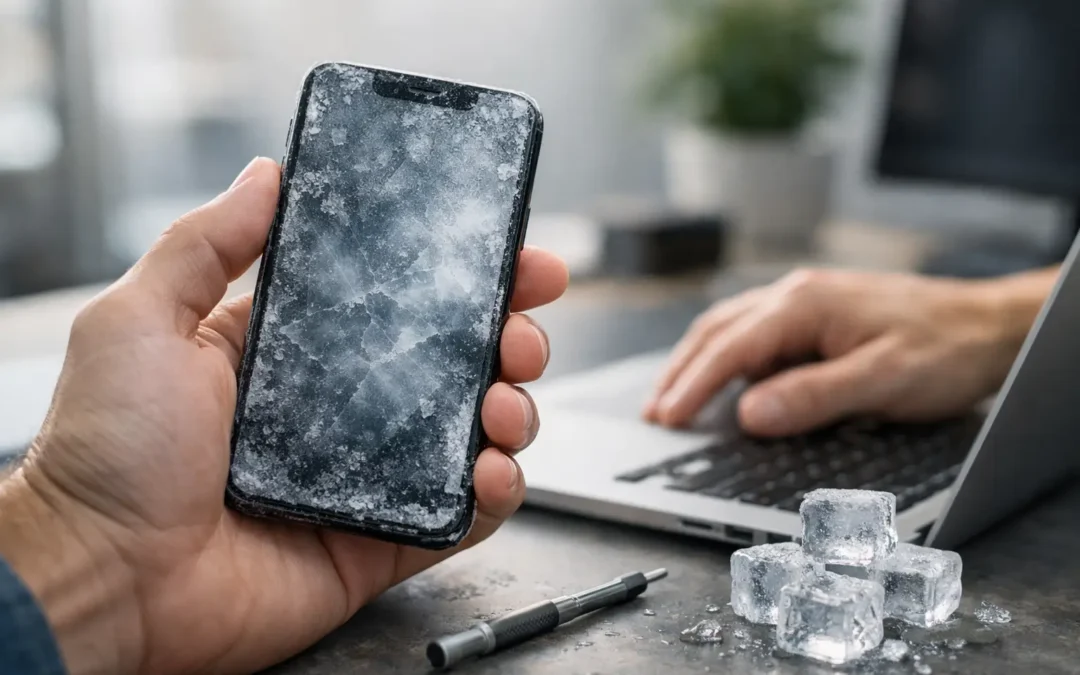
Remove the phone from direct heat, unplug the charger, take off a thick case if it is trapping warmth, and let the device cool naturally. Do not put it in a freezer or against an ice pack. Sudden temperature changes can create condensation inside the phone and cause more damage.
A weak battery or charging issue is interrupting power
A failing battery does not always cause obvious shutdowns. It can also lead to lag, sudden restarts, a frozen screen, or a phone that works only while connected to a charger. Damaged charging ports, worn cables, and low-quality charging accessories can create similar symptoms.
Pay attention to patterns. If freezing happens when the battery percentage drops, while charging, or after the phone has been running for a while, the battery may be involved. Battery problems are usually repairable, but they should be checked before they affect daily use or cause the phone to swell.
Drop or water damage is catching up with the phone
A phone can look fine after a drop and still develop internal problems days later. Loose display connections, damaged components, or a stressed battery can cause intermittent freezing. Water exposure is even less predictable. A phone may turn on after getting wet but begin freezing as corrosion develops inside.
If your phone froze after a fall, rain exposure, a spill, or a trip through the washing machine, avoid charging it until it has been inspected. Charging a wet device can cause a short and turn a repairable problem into a more serious one.
What to Do When Your Phone Is Frozen
Start with the least invasive fix. Give the device a minute if it is completing a task such as opening a large photo library or installing an update. If nothing changes, try a normal restart.
When the screen will not respond, use a force restart. This does not normally erase your data. On many newer iPhones, quickly press and release Volume Up, quickly press and release Volume Down, then hold the Side button until the Apple logo appears. On many Samsung Galaxy phones, press and hold the Side button and Volume Down button together for about 10 seconds. Button combinations can vary by model, so stop if you are unsure rather than pressing random buttons.
Once the phone comes back on, check available storage, install pending system and app updates, and remove any app that repeatedly triggers the freeze. If the device recently became hot, let it cool before using it again. If it is low on battery, use a known-good charger and cable.
A factory reset is not the first move. It can help with severe software corruption, but it wipes your data unless you have a reliable backup. Try the simpler steps first, and make a backup as soon as the phone is stable enough to do so.
Signs It Is Time for Professional Repair
A one-time freeze after a big update may be frustrating but not urgent. Repeated freezing is different. You should have the phone checked if it freezes several times a day, restarts by itself, gets hot during normal use, will not charge consistently, or freezes after a drop or water exposure.
Other warning signs include a flickering screen, touch controls that stop working in certain areas, rapid battery drain, a battery that lifts the screen, or a phone that only works when plugged in. These symptoms can point to a failing battery, charging port, screen assembly, or internal board issue. Software troubleshooting alone will not fix damaged hardware.
Do not ignore a swollen battery. If the back cover or screen is separating from the frame, stop using and charging the phone. Keep it away from heat and have it inspected as soon as possible.
Protect Your Data Before the Next Freeze
Freezing can be a warning that a device is becoming unreliable. If your phone still turns on, back up photos, contacts, messages, and work files now. Use your preferred cloud backup, a computer backup, or both. Make sure the backup actually finishes and that you know how to access it.
It also helps to keep your software current, delete apps you no longer use, avoid overheating the phone, and use quality charging accessories. A protective case can reduce damage from drops, although it cannot prevent every internal issue.
If quick fixes do not last, do not spend your week restarting a phone that you rely on for work, school, and family. Phone Repair Ambulance offers fast local diagnostics and repair options in Houston, so you can get a clear answer and move forward with a phone you can count on.