
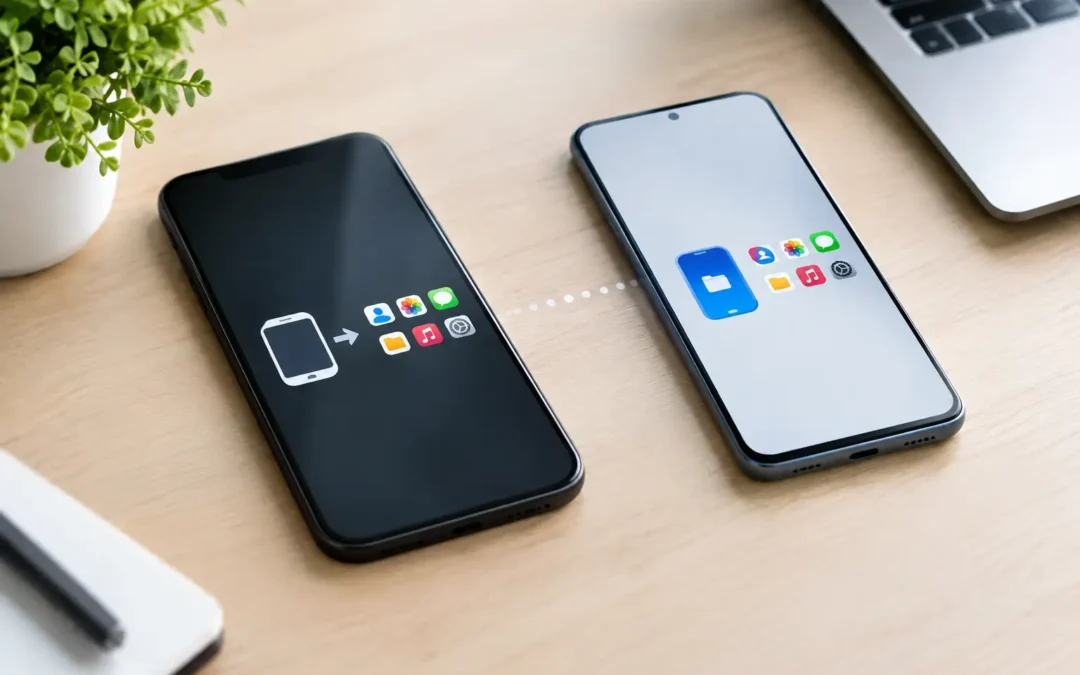
Your new phone is in the box, your old one is still working, and you have one job before you celebrate: make sure the photos, messages, contacts, and apps that matter make the trip. This phone data transfer guide gives you a practical way to move your information without accidentally leaving behind the things you need for work, school, family, or daily life.
A transfer is usually simple when both phones turn on, connect to Wi-Fi, and have enough battery. It gets more complicated when the old phone has a cracked screen, water damage, a failing charging port, or a battery that will not stay powered on. The best approach depends on your phones, your cloud backup, and the condition of the old device.
Before You Start: Protect What You Already Have
Do not erase, trade in, or hand over your old phone until you have confirmed the new one contains your important data. A transfer can look complete while a few items, such as text messages, authenticator apps, downloaded files, or recent photos, are still missing.
Start by charging both phones. Keep them plugged in if possible, especially if you have years of photos or a large app library. Connect to a reliable Wi-Fi network, turn off low-power mode, and update the old phone if an update is available. Software updates can prevent transfer errors, particularly when moving between recent iPhone or Android models.
You should also check available storage on the new device. If your old phone uses more storage than the new one has available, you may need to move photos and videos to cloud storage, a computer, or an external drive first. Trying to force a full transfer into limited storage can leave you with missing media and confusing error messages.
Before starting, make sure you know your Apple ID or Google account password. If you use two-factor authentication, keep access to the old phone, a trusted email address, or a backup authentication method. Being locked out of an account halfway through setup is one of the most common avoidable delays.
Phone Data Transfer Guide: Choose the Right Method
The fastest method is usually a direct phone-to-phone transfer. It copies supported data from the old device to the new one over a cable or local wireless connection. Cloud restoration is another reliable option, but its speed depends on your internet connection and the size of your backup.
For an iPhone-to-iPhone move, Apple’s Quick Start setup can transfer data directly when both phones are nearby. You can also restore the new phone from an iCloud backup or from a backup stored on a Mac or PC. A direct transfer is often the best choice when your old iPhone is available and stable. A cloud backup is useful when the old phone is unavailable or when you need to set up the new phone later.
For Android-to-Android transfers, most manufacturers provide a setup tool that moves contacts, photos, messages, call history, settings, and many apps. You may be prompted to connect the phones with a USB-C cable or use a wireless transfer. A cable is generally more dependable and faster for large transfers. Google backup can restore many essentials if a direct transfer is not possible.
When switching from iPhone to Android or Android to iPhone, expect some trade-offs. Contacts, photos, calendars, and many files can move easily, but paid apps, certain app data, device-specific settings, and some message histories may not transfer in the same way. You may need to download apps again and sign in individually. Plan for extra time if you are changing operating systems.
What Usually Transfers and What Needs Attention
Most modern setup tools can bring over the basics: contacts, photos, videos, calendars, email accounts, call logs, many apps, and device settings. Still, not every item is handled automatically.
Messages deserve a close check. Standard text messages may transfer, but encrypted messaging apps often require their own backup or migration process. If you use WhatsApp, Signal, or another messaging service for family or business communication, open the app on the old phone and confirm its backup or transfer instructions before wiping anything.
Authenticator apps are another priority. These apps generate login codes for banks, email, work accounts, and social media. Some let you transfer codes directly; others require you to disable and re-enable two-factor authentication for each account. Do this while the old phone is still accessible. Screenshots alone are not a secure or reliable substitute for a proper migration.
Check downloaded files too. PDFs, voice recordings, scanned documents, and files saved in local folders may not be included in your photo backup. Open the Files app on iPhone or the Files/My Files app on Android and look for important documents stored only on the device.
If you use an eSIM, your carrier may offer an on-screen transfer during setup. In other cases, you will need to activate the new phone through your carrier account or scan a QR code. Do not assume your cellular line has moved just because the new phone connects to Wi-Fi.
A Simple Transfer Checklist
Once the setup process says it is finished, take ten minutes to verify the essentials. This small step can save you from discovering a problem after the old phone has been erased or traded in.
- Make a test call and send a text message using your regular phone number.
- Open your photo library and check recent photos, older albums, and videos.
- Confirm contacts, email, calendar appointments, and notes are present.
- Sign in to banking, work, school, and messaging apps.
- Test your authenticator app before signing out of the old phone.
- Check that your smartwatch, earbuds, car Bluetooth, and payment wallet are connected.
Also look at the new phone’s storage settings after the transfer. Photos and apps may continue downloading in the background for hours, particularly after a cloud restore. Keep the device on Wi-Fi and power until the process is truly done.
If Your Old Phone Is Broken
A broken screen does not always mean your data is gone. If the phone still powers on and responds to touch, you may be able to complete a backup or direct transfer with help from a technician. A screen repair can be the quickest path to accessing photos, contacts, and account information that was never backed up.
Water damage is more urgent. Do not keep repeatedly charging or turning on a wet phone. That can make internal damage worse. Power it off if possible, avoid rice, and get it assessed quickly. Data recovery is never guaranteed after liquid damage, but fast professional attention can improve the odds when the phone contains irreplaceable information.
A phone that will not charge may have a bad cable, adapter, battery, or charging port. Try a known-good charger first, but do not force a damaged connector. If you can get the old device stable long enough to back it up, you may avoid losing years of content.
Houston customers who are stuck with a damaged phone before a transfer can bring it to Phone Repair Ambulance for a quick assessment. The goal is straightforward: get the device working long enough to protect your data, then help you move forward without a mail-in delay.
When a Computer Backup Is the Better Choice
Cloud storage is convenient, but a local computer backup gives you another layer of protection. It is especially helpful when your internet is slow, your cloud storage is full, or your phone has a very large photo library.
For iPhone users, an encrypted computer backup can preserve saved passwords, health data, and Wi-Fi settings that may not be included in an unencrypted backup. For Android users, copying important folders such as DCIM, Downloads, Documents, and recordings to a computer can protect files that do not sync automatically.
A computer backup is also smart before repairing a phone. Any repair involving power, storage, water damage, or a severely damaged display carries some risk because the device was already unstable. Backing up first, when possible, puts you in a much better position.
Do Not Erase the Old Phone Yet
Give yourself at least a day with the new phone before resetting the old one. Use it normally. Make calls, receive verification codes, find an older photo, open your most important apps, and confirm that everything feels right.
Once you are sure the transfer is complete, sign out of your accounts, remove the old phone from Find My or your Google account, erase it, and remove the SIM card if it is not being reused. This protects your personal information before a trade-in, resale, recycling, or handoff to a family member.
Your phone holds more than files. It holds proof of appointments, conversations with people you love, work access, school records, and memories that may not exist anywhere else. Take the extra time to verify the move, and if a damaged device is standing in the way, get help before the problem turns into permanent data loss.