
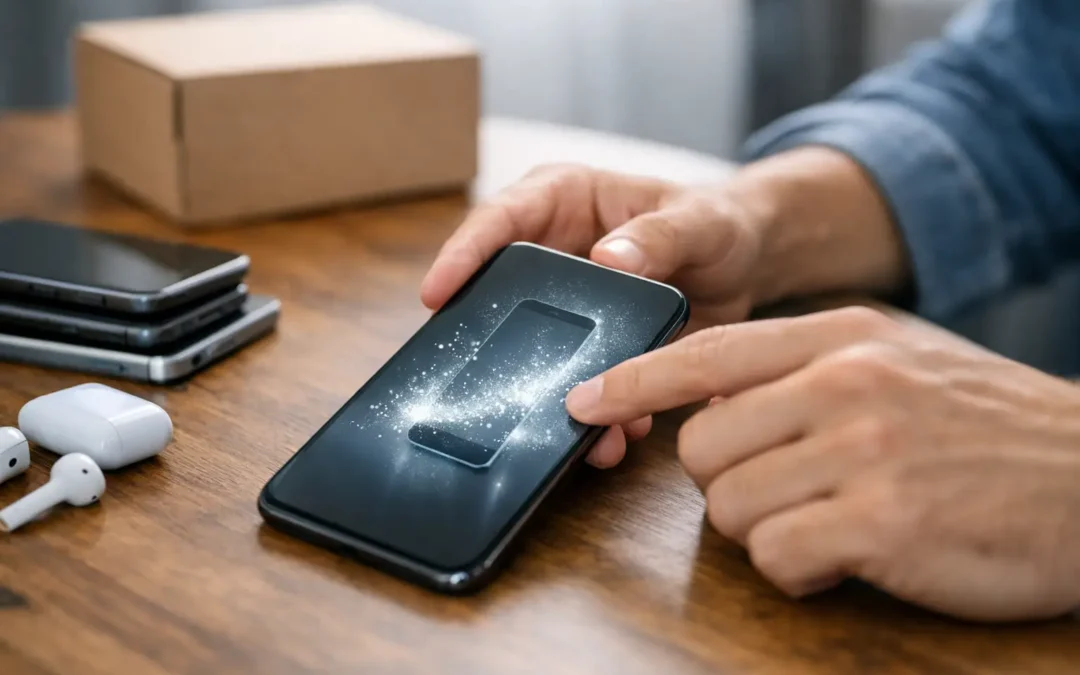
A phone can hold years of private life in a device small enough to fit in your pocket: family photos, banking alerts, saved passwords, work email, location history, and messages you never intended anyone else to read. Knowing how to erase old phone data correctly is what protects that information when it is time to sell, trade in, recycle, or hand the device to someone else.
A factory reset is usually the final step, not the first one. If you reset too early, you can lose the photos, contacts, files, and account access you still need on your new phone. Take a few minutes to prepare the device properly. It is much faster than trying to recover something after the old phone is gone.
Before You Erase an Old Phone, Save What Matters
Start by making sure your new device has everything you need. Check more than your photo library. Contacts, messages, notes, app data, documents, authenticator apps, and voice memos can be easy to miss.
For an iPhone, confirm that your latest iCloud backup completed or transfer your data directly to the new iPhone. For Android, verify that your Google backup is current and that photos, contacts, and files have synced. If you use a separate photo app, password manager, messaging service, or cloud drive, open it on the new device and make sure your information is there.
Do not rely on a backup notification alone. Open a few recent photos, check your contacts, and sign in to important apps on the replacement phone. That quick check can prevent a major headache later.
If you use an authenticator app for two-factor verification, move those codes before wiping the old phone. Some apps require you to export or transfer accounts manually. This matters for banking, email, payroll, school, and business accounts. A factory reset can remove the only access method you have saved.
Sign Out of Accounts Before the Factory Reset
The biggest mistake people make is resetting a phone while it is still tied to their Apple ID, Google Account, or business management profile. The phone may be wiped, but activation security can stay on. That makes the device difficult or impossible for the next owner to activate.
For iPhones
On an iPhone, sign out of your Apple ID before you erase the device. Go to Settings, tap your name, scroll down, and choose Sign Out. You may need your Apple ID password to turn off Find My iPhone.
This step removes Activation Lock. It is essential if you plan to sell, trade in, give away, or recycle the phone. If Find My stays active, a buyer may see an activation screen asking for your Apple ID after the reset. At that point, the phone is still connected to you.
Also remove the device from your Apple account if needed. If you have already reset the phone or no longer have it in hand, you can usually manage trusted devices through your Apple account settings. Still, doing it directly on the phone before erasing is the cleanest route.
For Android Phones
On Android, remove your Google Account from the phone before resetting it. The exact menu can vary by Samsung, Google Pixel, Motorola, and other brands, but it is generally found under Settings, then Accounts or Passwords & Accounts.
Why does this matter? Android uses Factory Reset Protection. If you reset a phone while your Google Account remains on it, the next user may have to enter the previous Google Account credentials during setup. That security feature helps stop theft, but it can also delay a legitimate sale or trade-in.
Samsung owners should also sign out of their Samsung account and turn off Find My Mobile or SmartThings Find. A phone with multiple account locks can create extra trouble for the next owner.
Remove Your SIM Card, eSIM, and Storage Card
Your physical SIM card contains carrier information and may hold contacts on older setups. Remove it before the phone leaves your hands. Keep it if you are moving service to another phone, or destroy it if it is no longer needed.
An eSIM needs a little more attention. If your old phone is being replaced on the same carrier account, your carrier may transfer the eSIM as part of setup. Once your new phone is active, erase the eSIM plan from the old phone if it is still present. This prevents your number and service details from staying on a device you no longer own.
If your Android phone has a microSD card, remove it too. A factory reset may not erase the card unless you specifically choose that option. Check the card for photos, downloads, recordings, and app files before formatting it or placing it in another device.
How to Erase Old Phone Data With a Factory Reset
Once your backup is verified, accounts are removed, and SIM or storage cards are handled, you are ready for the reset.
Erasing an iPhone
On most current iPhones, go to Settings, General, Transfer or Reset iPhone, then Erase All Content and Settings. Follow the on-screen prompts. The phone may ask for your passcode and Apple ID password before it begins.
Keep the phone charged or connected to power until the process finishes. When it restarts to the Hello setup screen, it is ready for a new owner. Do not continue through the setup screens. Power it off there.
Modern iPhones use encryption, so the erase process removes the encryption keys that protect your data. A proper factory erase is designed to make your personal content inaccessible to the next user.
Erasing an Android Phone
On most Android devices, open Settings and search for “reset.” Choose Factory data reset or Erase all data, then follow the prompts. Samsung phones commonly list this under Settings, General Management, Reset, and Factory Data Reset.
Menu names differ, but the goal is the same: erase apps, accounts, settings, files, and personal content from the internal storage. Read the final confirmation screen before tapping reset. If it says the device will erase all data, you are in the right place.
After the phone restarts, stop at the first setup screen. A device that opens to language selection or a welcome screen has been reset. If it asks for your previous Apple ID or Google credentials, an account lock may still be attached and needs to be removed before the phone is sold or traded.
What If the Screen Is Broken or the Phone Will Not Turn On?
A damaged phone needs a different plan. If the screen is cracked but still works, back it up, sign out, and reset it as usual. If the display is black, the touchscreen does not respond, or the phone will not charge, do not assume your data is gone. It may still be stored inside the device.
You may be able to erase a phone remotely through your Apple or Google account, provided the device can connect to the internet. Remote erasing is useful if a phone is lost, but it is not always the best choice before a trade-in because you still need to remove account locks afterward.
For a phone that cannot be operated, professional repair can sometimes restore the screen or charging function long enough to back up and erase it safely. For Houston customers, Phone Repair Ambulance can assess a damaged device before you trade it in, recycle it, or pass it along. That is often a smarter option than handing over a phone that still contains your personal data.
Do Not Forget Work, School, and Financial Apps
If the phone was used for work or school, sign out of company email, collaboration apps, VPNs, and device management tools. Some organizations require a device to be removed from their management system before it can be reset or reused.
For financial apps, remove the old phone as an approved device where possible. Review your bank, payment, and brokerage app security settings from your new phone. You do not need to close your accounts, but you should remove old device access and confirm that alerts are now going to the correct phone number and email address.
This is also a good time to change passwords if the phone was lost, stolen, or out of your control. A standard upgrade does not usually require password changes, but a missing phone is a different situation.
Check the Phone One Last Time
Before you box up the device, confirm three things: it is at the initial setup screen, no SIM or microSD card remains inside, and it is no longer listed as an active device in your Apple, Google, carrier, or business account.
If you are trading it in, bring the charging cable only if the buyer requests it. Keep your case, accessories, and any personal items unless they add value to the offer. Take a clear photo of the phone’s condition and record its serial number or IMEI for your records.
Erasing an old phone is not complicated, but doing the steps in the right order protects the information that matters most. Give yourself enough time to verify the backup, remove your accounts, and reset the device completely. Then you can hand it off with confidence instead of wondering what you left behind.