
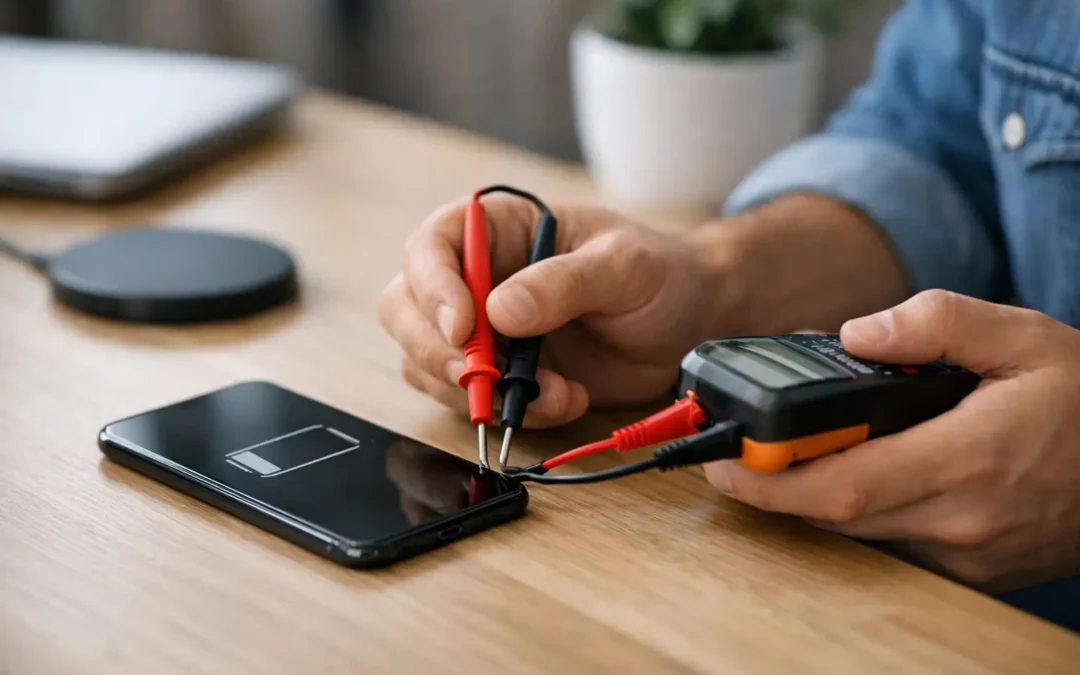
Your phone drops from 30% to 5% before lunch, shuts down in the car, or feels hot during a short call. Those are frustrating problems, but they do not always mean you need a new phone. Knowing how to test phone battery health helps you separate normal aging from a battery that needs attention right away.
A phone battery is a consumable part. Every charge cycle slowly reduces the amount of energy it can hold. Heat, heavy gaming, cheap charging accessories, water exposure, and leaving a phone in a hot Houston vehicle can speed up that wear. The goal is not to expect a years-old battery to perform like new. It is to find out whether the battery is still dependable for your work, school, family, and daily errands.
Start With the Phone’s Built-In Battery Health Tools
The quickest test is usually already on your phone. It is not a full diagnosis, but it gives you a useful starting point.
Check battery health on an iPhone
On most newer iPhones, open Settings, then Battery, then Battery Health & Charging. Look for Maximum Capacity. This percentage compares the battery’s current charge capacity with when it was new.
A reading in the high 80s or 90s is often still usable, depending on how you use the phone. At 80% or below, many people notice shorter runtime and more frequent charging. If the screen says the battery needs service, take that message seriously, especially if you are also seeing random shutdowns or slow performance.
Also check Peak Performance Capability on that screen. If iOS has limited performance because the battery could not provide enough power during a demand spike, the phone may feel slower when opening apps, using the camera, or playing games. That is not always a processor problem.
Check battery information on Samsung and Android phones
Android battery menus vary by manufacturer. On many Samsung phones, open Settings and search for Battery, Battery and device care, or Diagnostics. Samsung Members may also offer a battery status check. Other Android devices show battery usage, charging status, and which apps use the most power, but may not show a simple capacity percentage.
No percentage does not mean there is no way to evaluate the battery. Look at the pattern. A phone that loses a large amount of charge while sitting idle, heats up with light use, or fails to make it through a normal day deserves a closer test.
How to Test Phone Battery Performance in Real Use
Battery health numbers are helpful, but real-world behavior tells the fuller story. Test your phone on a typical day instead of judging it after a video call, a long navigation session, or an afternoon in direct heat.
Charge the phone to 100% with a known-good charging cable and wall adapter. Then use it normally for several hours. Make a few calls, send messages, browse, stream a short video, and use the apps you rely on. Keep track of the percentage drop and whether the phone gets unusually warm.
A healthy battery does not need to drain at a perfectly even rate. The first few percentage points can move faster or slower, and battery estimates can recalibrate after an update. What matters is a repeatable pattern. If 100% becomes 70% after only light use, or 40% suddenly turns into a shutdown, the battery may be weak or the phone may have a software or charging issue.
For a more controlled check, turn off power-hungry extras for an hour, including mobile hotspot, Bluetooth devices you are not using, and high screen brightness. Use Wi-Fi if available and avoid games or video recording during the test. If battery drain is still extreme under light use, an aging battery becomes more likely.
Watch for the Signs That Matter Most
Fast battery drain is the complaint people notice first, but it is only one clue. Battery trouble often appears as a group of symptoms.
Unexpected shutdowns are a major warning sign. When an older battery cannot deliver enough power during a demand spike, the phone can turn off even though it shows 10%, 20%, or more remaining. Repeated shutdowns in cool weather, while using the camera, or during a call are especially worth checking.
Slow charging can point to a worn battery, but it can also come from a damaged cable, lint packed into the charging port, a weak adapter, or a software setting that protects battery life by slowing charging overnight. Try another quality cable and adapter before assuming the battery is the cause.
Heat deserves attention too. Some warmth while fast charging, navigating, or gaming is normal. A phone that becomes very hot during simple messaging or feels hot while idle is not normal. Stop charging it, remove the case if it is trapping heat, and let it cool down. Continuous overheating can damage the battery further.
Rule Out Apps and Software Before Replacing the Battery
A battery can look bad when one app is doing too much in the background. Check the Battery section in Settings to see which apps used the most power over the last day or week. Social media, navigation, video streaming, and apps with frequent location access are common culprits.
If one app stands out, update it, limit its background activity, or uninstall it briefly to see whether battery life improves. Review screen brightness, refresh rate, always-on display settings, and weak cellular coverage as well. When your phone constantly hunts for a signal, it works harder and uses more power.
Install available system updates, then give the phone a day or two of normal use. Updates can temporarily increase drain while the phone reorganizes files and completes background tasks. If the issue began immediately after an update and does not settle down, a technician can help determine whether the cause is software, the battery, or another component.
Do Not Ignore a Swollen Battery
A swollen battery is not a DIY test or a wait-and-see situation. Warning signs include a screen lifting away from the frame, a back cover that will not sit flat, gaps around the phone, or a device that rocks on a table.
Do not press the screen back into place. Do not keep charging the phone, puncture it, or leave it in a hot car. Power it off if you can do so safely and arrange professional service. Lithium-ion batteries can become hazardous when damaged, and protecting your safety matters more than saving one more day of use.
When a Battery Test Points to Repair
Battery replacement is often the practical answer when the capacity is low, the phone dies unexpectedly, or the charge no longer lasts through your normal routine. It can cost far less than replacing an otherwise good device, particularly if the screen, cameras, and performance are still in solid shape.
That said, replacement is not automatically the right move for every phone. If a device has severe water damage, charging-port damage, multiple failing parts, or is too old to receive the software you need, repair versus replacement depends on the full condition of the phone. A proper inspection prevents spending money on the wrong fix.
For Houston customers who need a clear answer fast, Phone Repair Ambulance can inspect battery behavior, charging performance, and related issues without making you guess which part is failing. A professional test is especially useful when the phone is shutting down, overheating, or showing signs of physical battery damage.
A Better Way to Treat Your Next Battery
Once you know the battery is healthy or have replaced it, simple habits can help it last. Avoid extreme heat, use reliable charging accessories, and do not leave the phone under a pillow or in a closed vehicle while charging. You do not need to obsess over charging to exactly 80% every day, either. Modern phones manage charging well, and convenience still matters.
The best battery test is the one that answers a practical question: can your phone reliably get you through the moments when you need it? If the answer has become no, do not keep planning your day around an outlet. Get the problem checked before a weak battery turns into a missed call, lost work, or a phone that will not power on at all.