
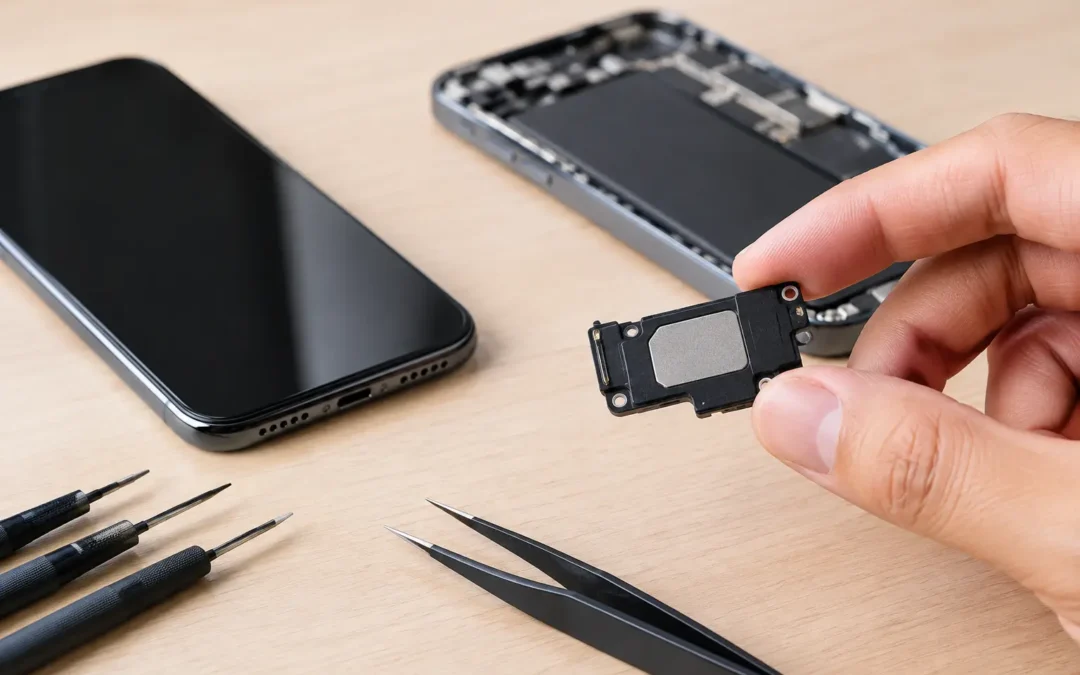
A phone that rings but cannot be heard, plays music at a whisper, or crackles during calls can turn a normal day into a frustrating one fast. This iPhone speaker repair guide helps you narrow down what is causing the problem before you spend money on a repair – and shows when a trained technician is the smarter choice.
First, make sure you are identifying the right speaker. iPhones use more than one speaker and microphone. The bottom speaker handles most music, video, ringtone, and speakerphone audio. The top earpiece speaker is what you hear when the phone is held to your ear during a regular call. A problem with one does not always mean the other has failed.
Start With the Simple Checks
A surprising number of speaker complaints come down to settings, Bluetooth connections, or debris rather than a failed part. Start with a quick test: play a song or video, then raise the volume using the side buttons. Next, make a call and test both regular call audio and speakerphone audio.
If media is silent but calls work, the issue may be tied to an app, output setting, or software behavior. If regular calls are quiet but speakerphone is clear, the earpiece speaker may be blocked or damaged. If speakerphone, music, alarms, and ringtones are all weak or silent, the bottom speaker or its connection may need attention.
Check the Control Center for Bluetooth. Your iPhone may still be connected to earbuds, a car system, or a nearby speaker, sending sound somewhere else. Turn Bluetooth off temporarily and test again. Also confirm that Silent Mode is not on if your main concern is missed calls or alerts. Silent Mode will not stop music or video audio, but it can make a speaker problem seem worse than it is.
Restart the iPhone before assuming hardware failure. A restart clears temporary software glitches and forces audio services to reload. If sound returns after restarting but repeatedly disappears, update iOS when an update is available. Persistent issues after an update, a drop, or water exposure are more likely to be hardware-related.
Clean the Speaker Grille Carefully
Pocket lint, makeup, dust, and moisture residue can clog the tiny openings over the earpiece or bottom speaker. The result is usually muffled or reduced sound, not total silence. Cleaning may help, but the wrong tool can push debris farther in or damage the speaker mesh.
Power the phone off first. Use a clean, dry, soft-bristled brush and lightly brush across the grille rather than pressing into it. A dry cotton swab can help around the outer edge, but avoid leaving fibers behind. Hold the phone with the grille facing downward so loosened dust falls away from the device.
Do not spray cleaner, use compressed air at close range, poke the grille with a pin, or pour alcohol into the openings. Those shortcuts can tear protective mesh, force liquid inside, or damage delicate internal components. If the grille is visibly packed with debris and careful surface cleaning does not improve the sound, stop there. A technician can clean it properly while checking whether the speaker itself has been affected.
When Water or a Drop Changes the Diagnosis
Speaker issues that begin immediately after a fall or water exposure deserve more caution. A cracked screen, bent frame, or damaged charging port area can affect nearby connections. Even if the iPhone still turns on, a loose connector or damaged speaker assembly may cause distortion, intermittent sound, or complete silence.
Water is especially unpredictable. iPhones have water-resistance features, but water resistance is not permanent and is not the same as waterproofing. Steam, pool water, saltwater, and a drink spill can leave residue that corrodes components over time. Sound may seem muffled at first, then worsen days later as corrosion spreads.
If your iPhone was exposed to liquid, remove the case, wipe the exterior dry, and keep it unplugged until it has been inspected. Do not charge it to “see if it works,” and do not use rice. Rice does not remove residue from inside the phone, and charging a wet device can create a larger repair problem. Fast inspection gives you the best chance of limiting damage.
Know Which iPhone Speaker Needs Repair
The symptoms often point to the component that needs service. If music, videos, alarms, and speakerphone calls sound weak or distorted, the bottom loudspeaker is the likely concern. If you can hear videos normally but cannot hear callers unless you use speakerphone, the earpiece speaker is more likely at fault.
There are a few exceptions. A failed microphone can make people say they cannot hear you, but that is not usually a speaker issue. Audio that cuts in and out when you move the phone may indicate a connection issue after impact damage. If the sound works with headphones but not through the phone itself, that further points toward the speaker assembly, speaker grille, or internal connection.
A professional diagnosis matters because modern iPhones are tightly assembled. Opening the phone requires managing the screen, battery, seals, flex cables, and small components that can be damaged with an inexperienced repair attempt. A replacement speaker may be inexpensive compared with the phone, but a mistake during a do-it-yourself repair can turn one audio issue into a screen, battery, or Face ID problem.
When DIY Stops Being the Right Fix
A careful restart, settings check, and gentle exterior cleaning are reasonable at-home steps. Beyond that, the trade-off changes. Repair kits can look simple online, but they do not include the experience to spot hidden liquid damage, a bent housing, a failing charging assembly, or a damaged connector.
Bring the iPhone in for service when sound remains muffled after cleaning, disappears completely, crackles at higher volume, fails after a drop, or starts acting up after water exposure. You should also get help if the phone becomes unusually warm, will not charge normally, or has other symptoms alongside the speaker issue. Those signs suggest the problem may go beyond one part.
For Houston customers who need their phone back quickly, Phone Repair Ambulance can inspect the device, identify whether the issue is the earpiece, loudspeaker, microphone, charging-port assembly, or liquid damage, and explain the repair before work begins. That is a much better path than replacing parts based on a guess.
What to Ask Before an iPhone Speaker Repair
Ask whether the shop has tested both call audio and media playback. A proper diagnosis should confirm the actual failed component, not just replace the speaker because sound is low. It is also reasonable to ask about part quality, expected turnaround time, and whether the repair includes testing before pickup.
Back up your iPhone before any repair when possible. Speaker replacement typically should not erase data, but every electronics repair carries some risk, especially when the device has liquid damage or existing issues. If the phone is still usable, save your photos, messages, and important work files first.
Do not wait too long if sound is fading after liquid exposure or an impact. The best time to deal with a small audio problem is before it becomes a phone that cannot charge, make calls, or hold a reliable connection. A quick diagnosis can save time, money, and a lot of missed calls.